Natural language file search on Mac: describe a file, and find it
You rarely remember a file's name. You remember that it was a PDF, that it came from Gmail last week, or that it was a photo of a dog on the beach. Natural language file search lets you type exactly that. This guide shows how it works in Seek, what you can say, and how it differs from searching in Finder.
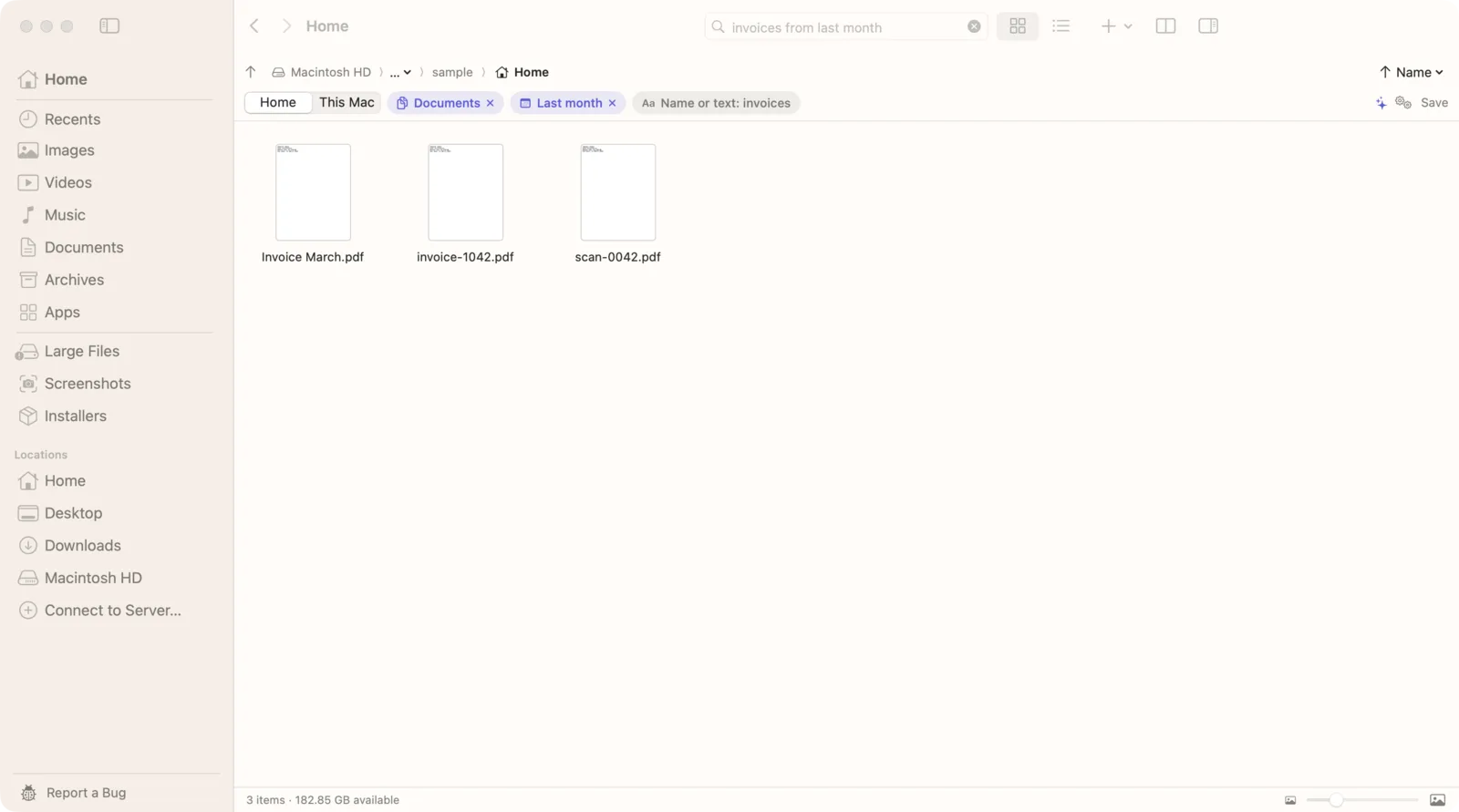
What natural language file search means
Classic file search matches the letters you type against file names. If you type “invoice”, you get files with “invoice” in the name, and that's about it. To narrow things down you add filters by hand, or learn a syntax like kind:pdf date:yesterday.
Natural language search flips that around. You describe the file in a normal sentence, and the app works out which parts are the file type, the date, the folder and the words to look for. You may also see it called AI file search or semantic file search. In Seek it covers three things:
- Understanding the sentence. “pdfs in Downloads from this month” becomes three filters: PDFs, this month, in Downloads.
- Reading what's inside files. Words you type are also looked for inside documents, PDFs and the text in images.
- Understanding photos. If the search is about pictures, Seek also matches photos by what they show.
All three run on your Mac. Nothing is uploaded.
How Seek turns a sentence into filters
Press ⌘F and type. As you type, Seek splits your sentence into parts and shows each one as a chip under the search field. Take this search, which is one of the sentences Seek's tests check:
“pdfs from gmail in downloads over 5 mb last week containing invoice”
- pdfs → the type: PDF.
- from gmail → the source: files downloaded from Gmail.
- in downloads → the place: your Downloads folder.
- over 5 mb → the size.
- last week → the date.
- containing invoice → a word that must be inside the file.
Each chip can be removed with one click. If Seek read part of your sentence the wrong way, you drop that chip instead of retyping the whole search. Any words left over, ones that aren't a type, date, size, place or source, are matched against file names and the text inside files.
What you can say
You don't need special words, but it helps to know what Seek listens for. Every example below is a real sentence Seek understands.
File type
PDFs, images, photos, screenshots, screen recordings, videos, audio, documents, spreadsheets, presentations, archives, installers, RAW photos, code, folders, apps, fonts and ebooks, or an extension like .zip. Try “installers older than 7 days” or “tiny pngs on desktop”.
Dates
Relative dates (“downloaded yesterday”, “newer than a week”, “older than 6 months”), months and years (“in march 2024”, “before 2025”) and ranges (“between jan 2025 and march 2025”). A word in front picks which date you mean: modified or edited, created or taken, added or downloaded, and opened. So “opened this month” and “pdfs added in 2025” each look at a different date.
Size
“bigger than 700 mb”, “larger than 1.5gb”, “less than 2 megs”, “more than 100 megabytes”.
Place
“on my desktop”, “in Downloads”, “in icloud drive”, “files in this folder”, a folder by name (“invoice in my Taxes 2026 folder”), or a drive (“code on my external drive modified today”). A place in your sentence always wins over the scope picker. External drives get their own guide: searching an external hard drive.
Where a download came from
“images downloaded from WhatsApp last week”, “screenshots from whatsapp in march”, “contracts pdf from dropbox before 2025”, “airdropped photos”.
Camera
“iphone photos”, “taken with canon”, or all together: “raw photos taken with nikon in august 2025 over 25 mb”.
Words inside files
“containing invoice”, or a quoted phrase after containing, mentioning or that say. For text in pictures, add “text in screenshots” or “text in images”. The details, including which file types Seek can read, are in how to search file contents on Mac and how to search text inside screenshots.
What a photo shows
Describe it: “dog on the beach”, “birthday cake”, “mountains from last month”. Filters still apply, so “woman walking on the beach in 2025” means a photo that shows that, from 2025. More in how to find photos by description.
Real searches over our demo files
The demo on our homepage plays real searches that Seek ran over 26 sample files. Here's what came back:
- “mountains from last month” found two photos showing mountains, taken in the last month.
- “tracking number from DHL” found a screenshot, by the DHL tracking number inside it.
- “monthly rent in October” found a spreadsheet with a Rent column and a scanned PDF that mentions “a monthly rent of $2,400”.
- “zips in Downloads older than a week” found two zip files, using only filters.
- “food from this month” found two food photos and a budget spreadsheet with a Food column.
That last one shows the three kinds of matching working together: photos matched by what they show, and a spreadsheet matched by its text.
How results are ranked
A search can match a file in different ways, so Seek orders them by how sure the match is:
- Files whose name matches your words exactly.
- Files whose name contains your words.
- Files that contain your words inside them, like a PDF that says “butterfly”.
- Photos that match by what they show, best match first.
Plurals match their singular, so “invoices” also finds a file called “invoice-2041.pdf”. If a file is found by its text and also looks like a match as a photo, it counts as a text match.
Where Seek searches
Next to the chips is a picker: the current folder, Home, or This Mac. A new search starts in the current folder, and you can change the default in Settings › Search › “Search starts in”. If you need to search from anywhere, the quick search panel opens over any app with ⌃⇧Space. For more on keeping results to one folder, see how to search within a folder on Mac.
Apple Intelligence is optional
Seek understands searches with its own rules, which work on macOS 14 Sonoma and later. On macOS 26, on Macs with Apple Intelligence, you can also turn on “Use Apple Intelligence to understand searches” in Settings › Search. It helps with longer or unusual sentences. Seek only keeps the parts of its suggestions that use words you actually typed, so the filters stay tied to your sentence. It runs on your Mac like everything else.
How this compares with Finder and Spotlight
Finder search uses the Spotlight index. You type a name, then narrow results by choosing suggestions or adding criteria rows such as Kind and Last opened date. It works, but you have to build the search step by step.
Spotlight has understood a few everyday phrases for years, like “documents from last week”. What it doesn't do is show you how it read your sentence or let you fix one part of it, and it doesn't search the photos in your folders by what they show.
Seek reads the whole sentence at once, shows every part as a chip, and adds photo search and its own text index on top of Spotlight. If Finder search is returning nothing at all, that's a different problem: see Finder search not finding files.
Tips for better searches
- Start with what you're surest of. The type and a rough date usually narrow things fastest: “spreadsheets from last month”.
- Add a place when you know it. “in Downloads” skips everything else on your Mac.
- Use “containing” for words inside. It tells Seek the word must be in the file, not just near the name.
- Describe photos plainly. “red car in the snow” works better than a single word like “car”.
- Remove a chip instead of retyping. If results look wrong, check the chips first.
Still drawing a blank on the name? Here's how to find a file when you don't remember what it's called.
Private by design
Search, photo understanding and text reading all run on your Mac. No account, no analytics, and your files are never uploaded. Seek downloads its photo model once during setup, about 375 MB, and then search works offline. Why that matters is covered in offline AI file search.
Questions
What is natural language file search?
It means typing what you remember about a file in an ordinary sentence, like “screenshots from whatsapp in march”, instead of exact file names or search syntax. The app works out the file type, date, place and words to look for.
Does it need Apple Intelligence?
No. Plain-English search, photo search and text search work on macOS 14 and later. On macOS 26 Macs with Apple Intelligence, Seek can also use it to understand harder searches.
Are my files uploaded to search them?
No. Understanding your search, reading text in files and matching photos all happen on your Mac. Seek downloads its photo model once during setup (about 375 MB), and after that search works offline.
Can I search for a photo by describing it?
Yes. Type what the photo shows, like “dog on the beach”, and Seek finds matching image files in your folders, even with names like IMG_4460.jpg.

Describe it. Seek finds it.
One-time purchase, no subscription. macOS 14 or later, Apple silicon and Intel.