How to find a file on Mac when you don't remember its name
You can find a file on your Mac without knowing its name by searching for what you do remember: the kind of file, roughly when you got it or opened it, a word inside it, or where it came from. Finder can do some of this with Recents, sorting and search criteria. Seek lets you type it as one sentence, like “pdf from WhatsApp last month”, and also finds photos by what's in them and screenshots by their text.
Start with what you remember
Before searching, think about which of these you know. Even two of them are usually enough:
- What kind of file it is: a PDF, a photo, a screenshot, a spreadsheet, a zip.
- Roughly when: downloaded last week, opened yesterday, made in March.
- A word or number inside it: a company name, an amount, a tracking number.
- Where it came from: a browser download, WhatsApp, AirDrop, an email.
- What it shows, for a photo: a dog, a beach, a receipt.
How to find a file without its name in Finder
1. Check Recents
Click Recents in the Finder sidebar. It lists files you opened or changed recently, newest first. If you worked on the file in the last few days, it's often here.
2. Sort Downloads by Date Added
To find a recently downloaded file on Mac, open Downloads, switch to list view (⌘2) and choose View › Sort By › Date Added. The newest downloads go to the top, whatever their names are. The same trick works on the Desktop for screenshots.
3. Search by content in Spotlight
Press ⌘Space and type a word you remember from inside the document. Spotlight searches the text of many documents, not only names. Add kind:pdf (or kind:image, kind:presentation) to keep only one type of file.
4. Build a search with Finder criteria
- In Finder, press ⌘F.
- Click + on the right of the search bar to add a rule.
- Set it to what you know, for example Kind is PDF.
- Click + again for Last opened date is within last 7 days, or choose Contents from the menu to match words inside files.
All rows must match, so each one narrows the results.
5. Look in the app you used
If you opened or made the file in an app, that app usually remembers it. Most Mac apps have File › Open Recent, which lists recent documents by name, even when you've forgotten where they were saved. In Preview, Pages, Word or Excel, that list is often the quickest way back.
6. Check the usual hiding places
- The Trash. Open it from the Dock and sort by Date Added (use the Date Added column in list view). Anything you deleted by mistake is still there until the Trash is emptied.
- The Desktop. Screenshots are saved there by default.
- iCloud Drive. If Desktop & Documents sync is on, those folders live in iCloud Drive in the sidebar.
- Mail attachments. Files you opened from an email may only exist in Mail until you save them.
Where Finder falls short
- Each piece of information is a separate menu, so describing a file takes several clicks.
- It can't find a photo by what's in it, unless the photo is in the Photos app.
- Get Info shows a download's web address, but you can't search for files “from WhatsApp” or “from AirDrop”.
- It depends on Spotlight's index, so a folder that isn't indexed returns nothing. See Finder search not finding files.
Find files by description with Seek
Seek is a file manager that runs beside Finder. You type what you remember in plain English, and Seek turns it into filters it shows under the search field, so you can check what it understood.
- Press ⌘F in Seek, or ⌃⇧Space from any app for the quick search panel.
- Type what you remember, in any order.
- Remove any filter that's wrong by clicking its ✕, or switch where to search: the current folder, Home or This Mac.
Describe when and what kind
- “pdfs in Downloads from this month”
- “spreadsheets opened last week”
- “zips in Downloads older than a week”
- “videos from September” (videos are found by date, type, size or name, not by what's in them)
Describe where it came from
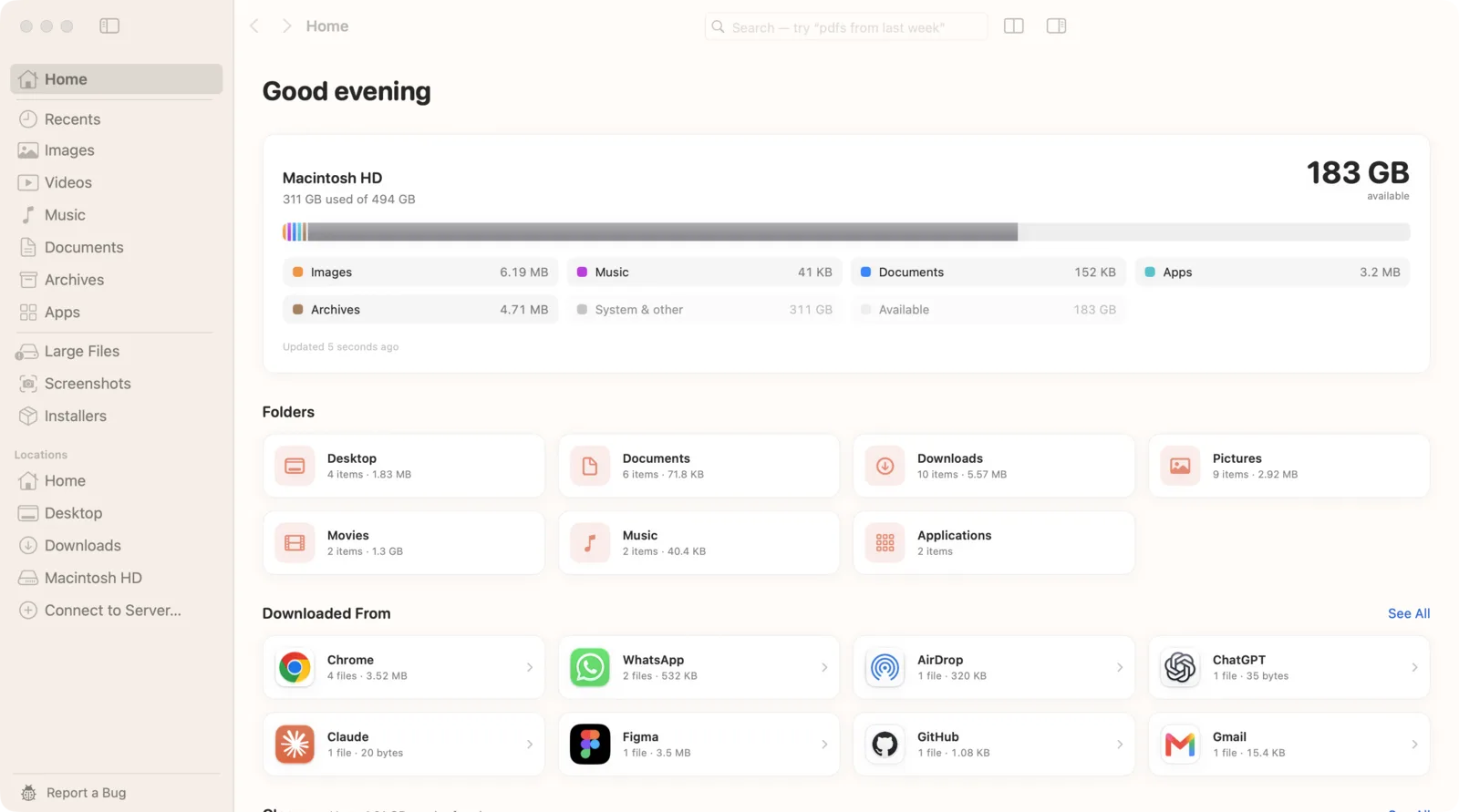
Seek knows where your downloads came from: Chrome, WhatsApp, AirDrop, Gmail and more. Search “screenshots from WhatsApp in March” or “pdfs from WhatsApp last month”. Or open Downloaded From (⇧⌘J) to browse downloads grouped by source.
Describe a word inside it
Type a word or phrase you remember from the file. Seek reads the text in PDFs, Word, Excel, PowerPoint and text files, and in screenshots and scanned PDFs too, on your Mac. Add containing to make sure the word is inside the file: “pdfs containing lease”. More in how to search file contents on Mac.
Describe what's in a photo
For photos saved as files, describe the picture: “dog on the beach”, “birthday cake”, “mountains from last month”. Seek's photo search runs on your Mac and works on image files in your folders, even ones called IMG_4460.jpg. See how to find photos by description.
Real examples from our demo files
- “tracking number from DHL” found a screenshot by the text in it.
- “monthly rent in October” found a spreadsheet with a Rent column and a scanned PDF that says “…a monthly rent of $2,400…”.
- “woman walking on the beach in 2025” found one photo by what's in it, from 2025.
- “food from this month” found two food photos and a budget spreadsheet with a Food column.
Finder vs Seek when you don't know the name
| What you remember | Finder | Seek |
|---|---|---|
| Kind and date | Criteria menus | ✓ |
| A word inside a document | ✓ | ✓ |
| Text in a screenshot or scan | Hit and miss | ✓ |
| What a photo shows | — | ✓ |
| Where a download came from | — | ✓ |
| All of it in one sentence | — | ✓ |
Everything runs on your Mac. Seek doesn't upload files, names or their contents.
Make files easier to find next time
Most files are hard to find because they arrive with names like IMG_4460.jpg, document (3).pdf or scan_0042.pdf. A few habits help:
- Rename files when you save them, with the person, the subject and the date:
Lease 2026 - Oak Street.pdf. - Empty Downloads regularly. Move what you keep into a folder for it, and let the rest go.
- Use one place per project instead of the Desktop.
Seek can do the renaming for you: with Give new downloads clear names on, Smart Rename uses Apple Intelligence on your Mac to name new downloads that have meaningless names, and you can undo any rename. It needs a Mac with Apple Intelligence.
Questions
How do I find a file on my Mac if I forgot the name?
Search for what you remember instead: the kind of file, roughly when you got it, a word inside it, or where it came from. In Finder use Recents, sort Downloads by Date Added, or add search criteria. In Seek, type it as one sentence, like pdfs from WhatsApp last month.
How do I find a recently downloaded file on Mac?
Open Downloads in Finder, switch to list view and choose View, Sort By, Date Added. In Seek you can also search downloads by source, such as screenshots from WhatsApp in March, or open Downloaded From.
Can I search for a document by the words inside it?
Yes. Spotlight and Finder search the text of many documents. Seek also reads PDFs, Office files, text files, screenshots and scanned PDFs on your Mac, so you can search any word you remember.
Can I find a photo by describing it?
In the Photos app you can search your library. For photos saved as files in your folders, Seek lets you describe them, like dog on the beach, using an image model that runs on your Mac.

Describe it. Seek finds it.
Find files by what's in them, when you got them and where they came from. One-time purchase, no subscription.