How to find photos by description on Mac
To find photos by description on a Mac, type what you remember into the search field of the Photos app, like “beach” or “dog”. That covers photos in your Photos library. For image files saved in ordinary folders, such as Downloads, Desktop or Documents, use an app that reads those files, like Seek. Type “woman walking on the beach” and the photo comes up, whatever it's called.


Why it's hard to search photos by content on a Mac
Cameras and phones name photos with a counter: IMG_4418.jpg, DSC_0311.jpg. Messaging apps and browsers add names like image (1).png. So the name tells you nothing, and you're left scrolling through thumbnails.
macOS has two places where photos live, and they're searched differently:
- The Photos library. Everything you imported into the Photos app. Photos analyzes these and lets you search them by what they show.
- Image files in folders. Photos you downloaded, saved from a chat, got by AirDrop, or exported from a camera card. These are ordinary files in Downloads, Desktop, Documents or iCloud Drive, and Photos doesn't know about them unless you import them.
The built-in way: search the Photos app
If your photos are in the Photos library, start here. It's free and already on your Mac.
- Open Photos.
- Click the search field and type a word for what's in the photo: “beach”, “dog”, “car”, “snow”.
- Photos suggests matches as you type, including places, dates and people you've named. Pick one, or press Return to see all results.
On Macs with Apple Intelligence, Photos also understands longer natural-language descriptions, not just single words. Photos can also find text that appears in a picture.
Where Photos search stops
- It only searches its own library. A photo in Downloads or on the Desktop isn't included until you import it.
- Importing usually copies the file. By default, Photos copies imported items into its library, so the original in Downloads stays where it was and takes space twice until you delete it.
- Not everyone wants their downloads in Photos. Screenshots, product shots, design references and work images often belong in project folders, not next to family photos.
What about Finder?
Finder search is built around names, kinds, dates and other file details. There's no way to ask Finder for “the photo of the mountains” in a folder of image files. The best you can do by hand:
- Open the folder and press ⌘F.
- Set Kind to Image, and add a date if you remember roughly when you saved it.
- Switch to icon or gallery view and scroll the thumbnails until you spot it.
That works for a folder of twenty images. It doesn't work for Downloads after two years.
Search photos in folders by description, with Seek
Seek is a Mac file manager that runs beside Finder. One of the things it does is natural-language photo search for image files in your folders, without importing anything into Photos.
- Turn on photo search. It's on by default. During setup Seek downloads its image model once, about 375 MB. The setting is Settings › Search › Find photos by what's in them.
- Let Seek look at your photos once. In the background, it reads the image files in your home folder's folders (Desktop, Documents, Downloads and others you made), Pictures and iCloud Drive. Each photo only needs to be looked at once.
- Search. Press ⌘F and describe the photo in a few words: “dog on the beach”, “birthday cake”, “snowy mountains”.
- Choose where to look. Under the search field, pick the current folder, Home or This Mac.
Real searches from our demo files
These are searches we ran in Seek over the sample files used in the demo on our homepage:
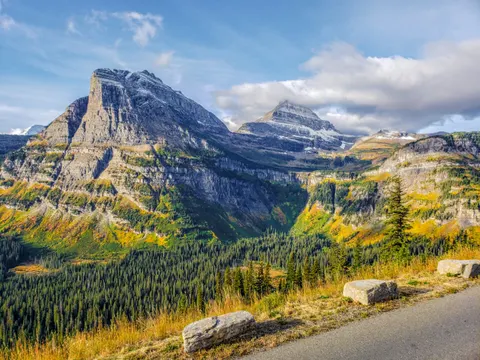
- “woman walking on the beach in 2025” found
IMG_4418.jpg, matched by what's in the photo and filtered to 2025. - “mountains from last month” found
DSC_0311.jpgandDSC_0318.jpg, the two mountain photos taken in the last month. - “food from this month” found two photos, sushi and a latte (
IMG_5077.jpg,IMG_5102.jpg), plus a budget spreadsheet with a “Food” column.
You can try those searches in the demo.
Mix a description with filters
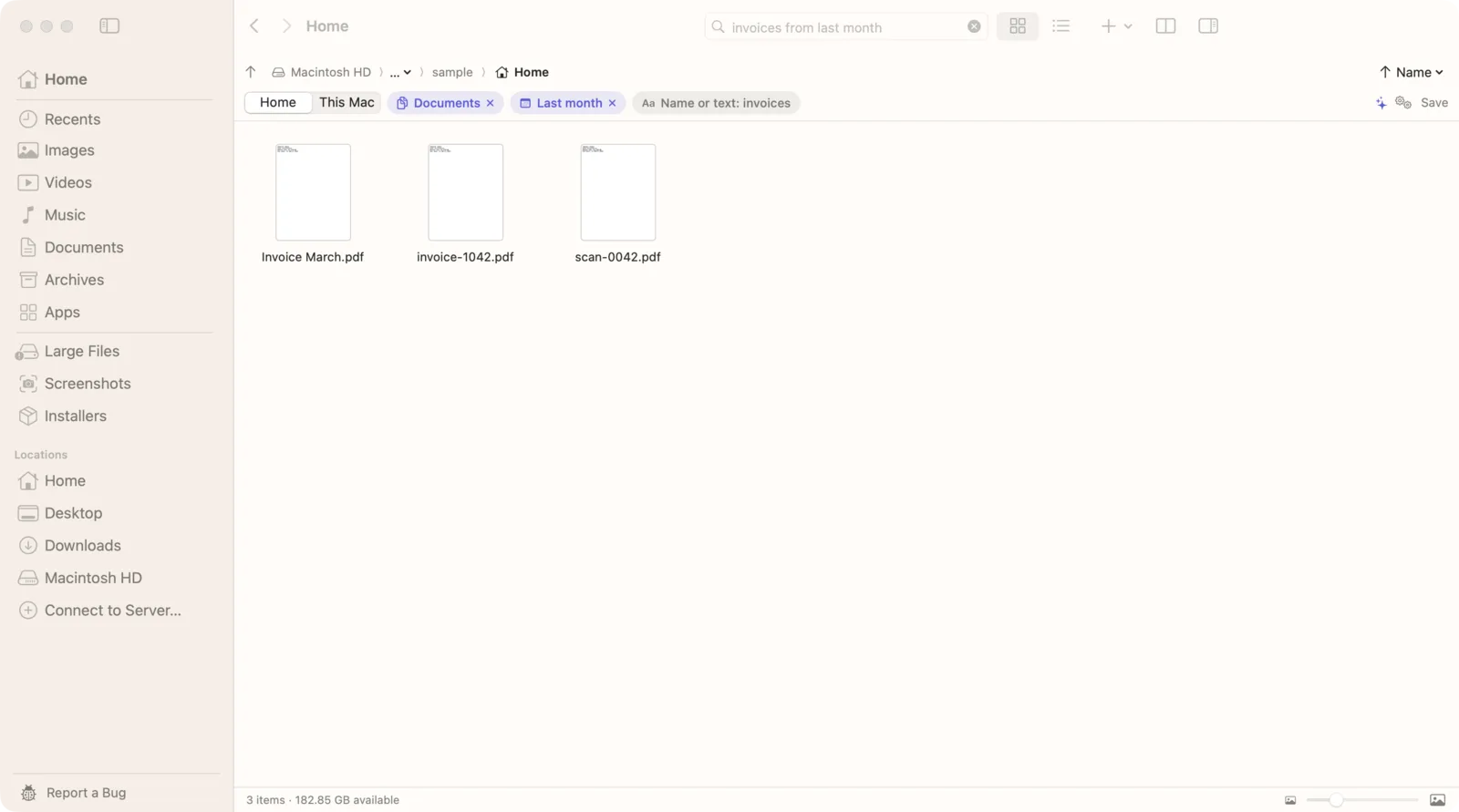
The rest of the sentence still works as filters. Seek splits your search into parts and shows each one as a chip under the search field, so you can see how it understood you and remove a part with one click:
- “beach photos in Downloads”: a description plus a folder.
- “mountains from last month”: a description plus a date.
- “photos of a road by the mountains from last week”: Seek looks for “road by the mountains” in photos taken last week.
- “dog photos taken with iPhone”: a description plus the camera.
How results are ordered
Files whose names match your words come first, then files with those words written inside them, then photos matched by what they show, best match first. Seek keeps only the photos that score close to the best match, so a search for “mountains” doesn't end with every outdoor picture you own.
Apple Photos, Finder and Seek compared
| Feature | Photos app | Finder | Seek |
|---|---|---|---|
| Search by what a photo shows | Its library only | — | Files in your folders |
| Image files in Downloads, Desktop, Documents | — | Name and date only | ✓ |
| Photos inside the Photos library | ✓ | — | — |
| Find people by name | ✓ | — | — |
| Works without importing | — | ✓ | ✓ |
They work well together: Photos for the library you curate, Seek for everything that never made it in.
Tips for better AI photo search
- Describe what you'd see. Objects, places and scenes work best: “red car”, “city at night”, “cake with candles”.
- Keep it short. A few words beat a long sentence. Add a date or folder to narrow it down instead.
- Use a description, not a name. Seek doesn't know who people are, so search “two people hiking”, not a friend's name.
- Looking for words in a picture? That's text recognition, not photo search. See how to search text inside screenshots.
What Seek's photo search doesn't cover
- The Photos library. Seek doesn't look inside it. Use the Photos app for those.
- External drives. Photo search covers the folders in your home folder, Pictures and iCloud Drive.
- Videos. Seek finds videos by name, date, size and folder, but not by what happens in them. In our demo, “videos from September” found
Maui trip.mp4by its date.
Everything runs on your Mac: the model, the reading and the search. Your photos are never uploaded. More on how that works.
Questions
Can I search photos by description on a Mac without the Photos app?
Yes. The Photos app only searches its own library. For image files in folders like Downloads, Desktop or Documents, Seek lets you describe a photo, like “dog on the beach”, and finds it without importing anything.
Does Seek search my Apple Photos library?
No. Seek searches image files in your folders: the folders in your home folder, Pictures and iCloud Drive. Use the Photos app to search photos inside its library.
Are my photos uploaded to do the search?
No. Seek's image model runs on your Mac. It's downloaded once during setup, about 375 MB, and after that photo search works offline.
Which image formats does Seek's photo search read?
JPEG, HEIC, PNG, TIFF, WebP, GIF, BMP and AVIF, plus RAW photos in DNG, CR2, CR3, NEF, ARW and RAF.
Can Seek find videos by what's in them?
No. Seek finds videos by name, date, size, type and folder, for example “videos from September”, but it doesn't look at what happens in a video.

Describe it. Seek finds the photo.
Search photos in your folders by what they show, on your Mac. One-time purchase, no subscription.