How to search text inside screenshots on Mac
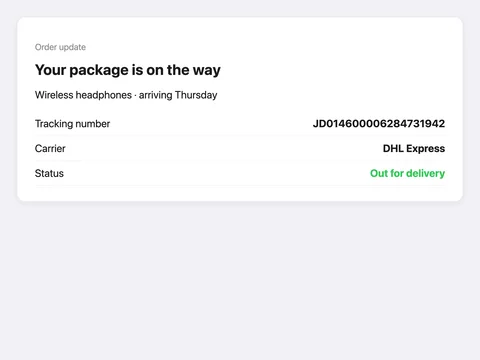
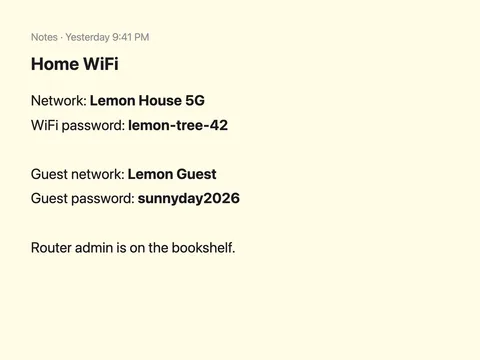
Your Mac can read the text in one screenshot at a time with Live Text, but it can't search all your screenshots for a word. To search text in screenshots on a Mac, you need an app that reads every image once and remembers the words. Seek does this on your Mac, so you can type “text in screenshots tracking number” and get the one screenshot that says it.
Where your screenshots are
Mac screenshots are taken with ⇧⌘3 (whole screen), ⇧⌘4 (a selection) or ⇧⌘5 (the screenshot toolbar). By default they land on the Desktop with names like Screenshot 2026-10-18 at 10.02.55.png. You can change the folder under Options in the ⇧⌘5 toolbar.
Those names tell you when, never what. After a few months you have hundreds of them: order confirmations, boarding passes, error messages, codes, recipes. The thing you need is in the text.
The built-in way: Live Text, one screenshot at a time
macOS recognizes text in images with Live Text. It's good for reading and copying text from a screenshot you've already found:
- Select the screenshot in Finder and press Space to open Quick Look, or open it in Preview.
- Move the pointer over the text. It turns into a text cursor.
- Drag to select the text and press ⌘C to copy it.
To find the screenshot in the first place, the usual route is:
- Open the folder where screenshots land, usually the Desktop.
- Press ⌘F and type “Screenshot” to list them by name.
- Sort by date, then open them one by one in Quick Look until you see the right one.
Where that falls short
- Live Text reads; it doesn't search. It works on the image in front of you, not on the folder.
- Finder search is built around names, kinds and dates. There's no option to say “only screenshots, and only the ones whose text says DHL”.
- Paging through previews is slow. If you don't remember roughly when you took it, you're checking every one.
Search text in screenshots with Seek
Seek is a Mac file manager that runs beside Finder. It reads the text in your images and scanned PDFs with Apple's own text recognition (OCR), on your Mac, and keeps the words in a search index. After that, every screenshot can be found by what it says.
- Check the setting. It's on by default: Settings › Search › Text inside files, with “Also read text in images and scanned PDFs (OCR)” ticked.
- Let it read once. Seek reads in the background at low priority, newest files first. You can watch progress, or pause it, from the activity spinner. It covers the folders in your home folder (Desktop, Documents, Downloads and any you made) and iCloud Drive.
- Search. Press ⌘F and type what the screenshot says.
- Copy the text. Select the screenshot and press ⇧⌘C to copy the text out of it.
Searches you can type
- “text in screenshots tracking number”: only screenshots, and only those whose text includes “tracking number”.
- “screenshots containing DHL”: screenshots with the word DHL in them.
- “text in images wifi password”: any image, not only screenshots.
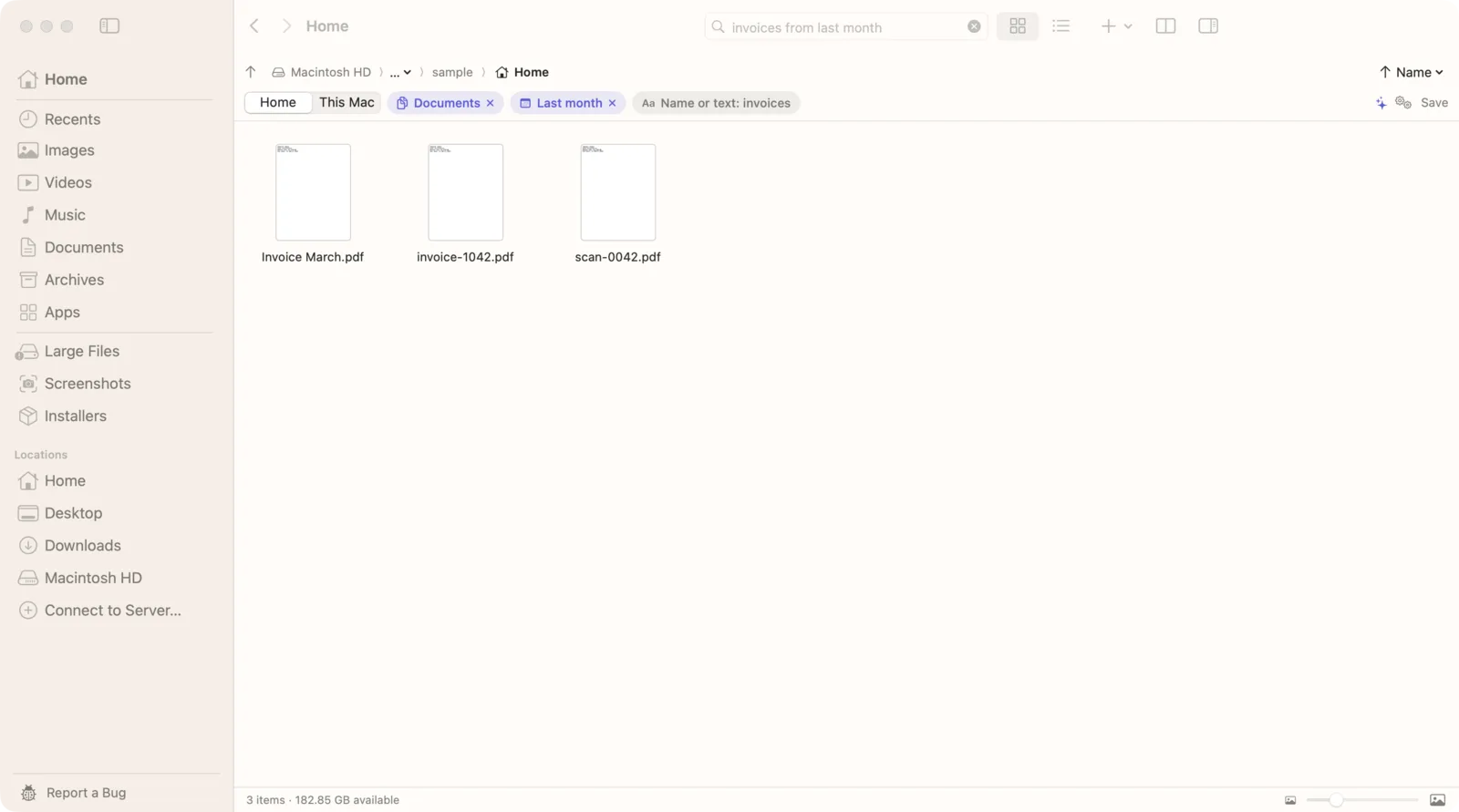
- “screenshots from last week containing invoice”: text plus a date.
- screenshots containing “out for delivery”: quotes keep a phrase together.
You don't always need the special words. In our demo files, the plain search “tracking number from DHL” found Screenshot 2026-10-18 at 10.02.55.png, matched by the text inside it. Try it in the demo.
Each part of a search shows up as a chip under the search field, such as Screenshots or Containing “DHL”. Remove a chip to widen the search.
Live Text and Finder vs Seek
| Feature | Finder + Live Text | Seek |
|---|---|---|
| Copy text from one screenshot | ✓ | ✓ |
| Search every screenshot by its text | — | ✓ |
| Only screenshots, from a date | By name and date | ✓ |
| Photos of paper and scanned PDFs | One at a time | ✓ |
| Text recognition on your Mac | ✓ | ✓ |
More than screenshots
The same text reading covers photos of paper (a receipt, a whiteboard, a sign) and scanned PDFs, where the pages are pictures of text. If a PDF has almost no real text, Seek treats it as a scan and reads the first 20 pages with OCR. See how to search scanned PDFs.
Seek also reads the text in Word, Excel and PowerPoint files, PDFs, plain text and code, so one search covers documents and screenshots together. More in how to search file contents on Mac.
Make screenshots easier to find later
- Give them their own folder. In the ⇧⌘5 toolbar, open Options and choose Other Location. Pick a folder inside your home folder, such as Documents › Screenshots, so Seek still reads it.
- Know what isn't saved. Adding Control to a screenshot shortcut copies the picture to the clipboard instead of saving a file. There's no file, so nothing can search it later.
- Search by type and date when you don't remember the words. “screenshots from last week” lists only screenshots from that week, without any text search.
- Clear out old ones. Seek's Cleanup lists screenshots older than 30 days, so you can review and trash them. See how to free up space.
Good to know
- The first pass takes a while. Reading thousands of images is real work. Seek starts with your newest files, so recent screenshots are searchable first.
- It pauses to spare your battery. Reading waits when the battery is under 20% or the Mac is hot, and continues when you plug in.
- The very first read can be slow once. macOS prepares its text recognition model the first time a new app uses it.
- Search distinctive words. An order number, a company name or an unusual word finds one screenshot. “The” finds all of them.
- Limits. Images up to 40 MB are read. Screenshots on external drives aren't read with OCR.
Nothing is uploaded: the text recognition, the index and the search all stay on your Mac.
Questions
Can a Mac search the text in screenshots?
macOS can read text in one image at a time with Live Text, in Quick Look or Preview. To search all your screenshots by their text at once, use an app that reads them first, like Seek: type “text in screenshots” followed by the words.
How do I copy text from a screenshot on Mac?
Open the screenshot in Quick Look or Preview, drag over the text and press Command-C. In Seek, select the screenshot and press Shift-Command-C to copy all its text.
Is the text recognition done in the cloud?
No. Seek uses Apple's text recognition on your Mac. The screenshots and their text never leave it.
Which folders does Seek read screenshots from?
The folders in your home folder, such as Desktop, Documents and Downloads, and iCloud Drive. It doesn't read Library, Applications, Movies, Music or Public, and it doesn't use OCR on external drives.
Does it work on photos of documents and scanned PDFs too?
Yes. The same text reading covers photos of paper and scanned PDFs, so you can search the words in them the same way.

Find the screenshot that says it.
Every screenshot on your Mac, searchable by its text. One-time purchase, no subscription.