How to free up disk space on your Mac, safely
“Your disk is almost full” usually isn't one huge file. It's years of installers, downloads you opened once, screen recordings and copies of copies. Here's where to look, what's safe to clear, and how to do it without losing anything you need.
1. See what's using space
Open System Settings › General › Storage. The bar at the top shows space by category, and the list below has Apple's own suggestions:
- Store in iCloud keeps older files and photos in iCloud and only downloads them when you open them.
- Empty Trash Automatically clears items that have been in the Trash for 30 days.
- Optimize Storage removes movies and TV shows you've already watched in the TV app.
Seek's Home shows the same kind of bar, plus the size of each of your main folders, so you can see at a glance whether it's Downloads, Movies or Documents that grew.
2. Clear the usual suspects
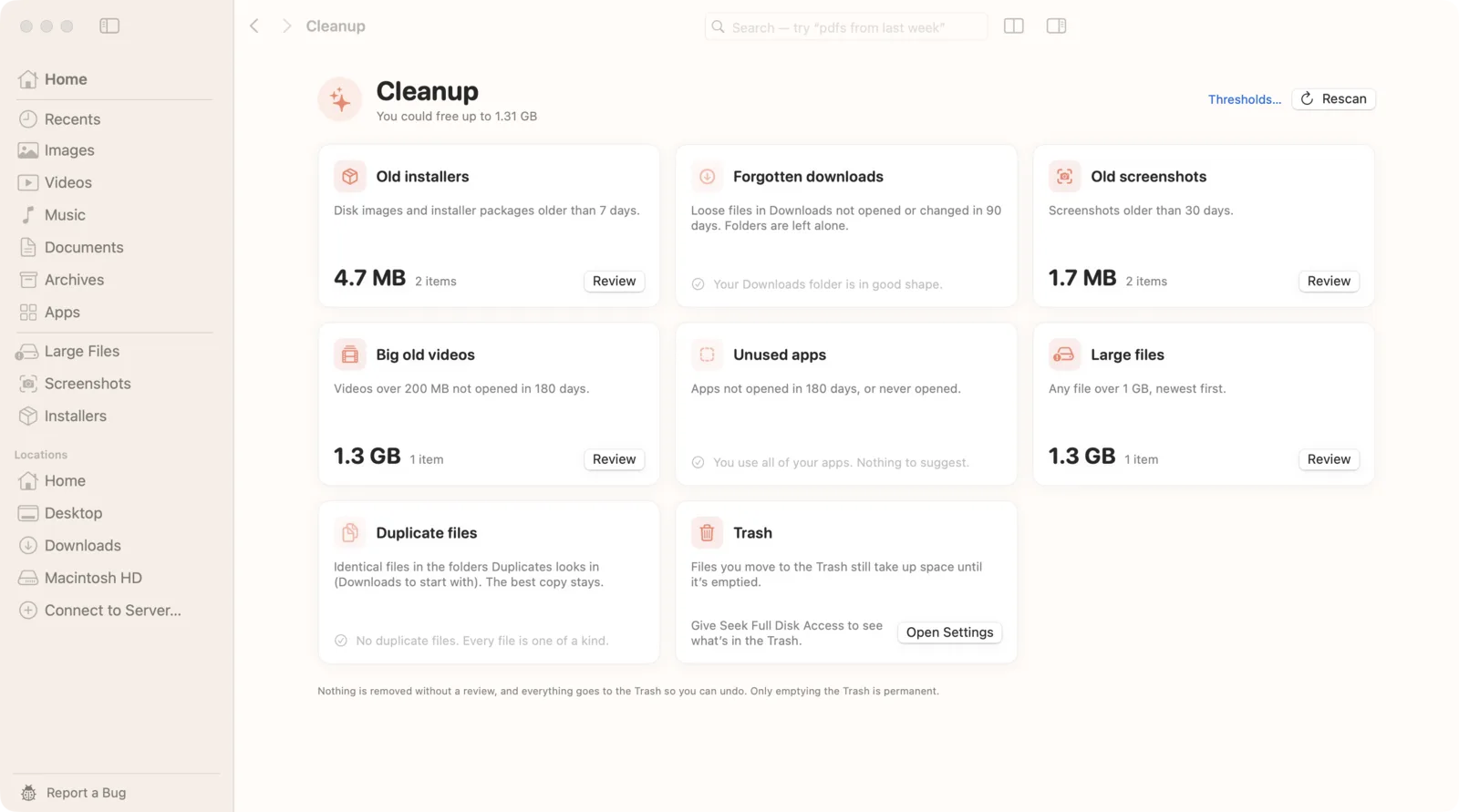
These are almost always safe to clear, and they're what Seek's Cleanup looks for. The limits below are Seek's defaults; you can change each one.
- Old installers. Disk images (
.dmg) and packages (.pkg) older than 7 days. Once an app is installed, you don't need them. - Forgotten downloads. Loose files in Downloads not opened or changed in 90 days. Folders are left alone.
- Old screenshots. Screenshots older than 30 days, which tend to pile up on the Desktop.
- Big old videos. Videos over 200 MB not opened in 180 days. Screen recordings are often the biggest files on a Mac.
- Unused apps. Apps not opened in 180 days, or never opened.
- Large files. Any file over 1 GB, newest first, so you can decide case by case.
- Duplicates. Exact copies of the same file. See how to find duplicate files.
3. Clean up with Seek
- Open Cleanup with ⇧⌘K. Seek shows how much you could free in total.
- Click Review on a card to see every file in it. Untick anything you want to keep.
- Click Trash Selected. Nothing goes without your OK, and you can undo it.
- When you're sure, empty the Trash. Only then does the space come back.
What to leave alone
- System Data and the Library folder. macOS manages caches and system files itself. Deleting them by hand rarely saves much and can break apps.
- The Photos library. Delete photos inside the Photos app, not in Finder.
- “Cleaner” apps that delete for you. Anything that removes files without showing you first is a risk. Prefer tools that move files to the Trash.
Questions
Is it safe to delete old .dmg and .pkg files?
Yes, once the app is installed. Disk images and installer packages are only needed to install an app, and you can download them again.
Why didn't my free space go up after deleting files?
Files in the Trash still take up space. Empty the Trash to get the space back.
Does Seek delete anything by itself?
No. Seek only suggests what to clear. Nothing goes without your OK, and everything goes to the Trash so you can put it back.

Get your space back.
See what you forgot about and pick what goes. One-time purchase, no subscription.