How to search file contents on Mac: find documents by the words inside
To search file contents on a Mac, press ⌘F in Finder, type a word, and choose Contents contains from the menu that appears. Finder then lists files with that word inside them, not just in their names. It works well for a quick lookup. When it doesn't, the reason is usually where Finder is looking, what Spotlight has read, or the kind of file. This guide covers all three, and how Seek finds documents by the words inside them, including scans and screenshots.
How to search file contents on Mac with Finder
Finder's search runs on Spotlight, the index macOS keeps of your files. Spotlight reads the text inside many common files, so Finder can search inside them too.
- Open a Finder window and press ⌘F. A search bar appears under the toolbar.
- Type the word or phrase you remember from the document, for example
lease. - A menu drops down under the search field. Choose Contents contains: lease. (Choosing Name matches instead searches file names only.)
- Next to Search:, pick This Mac to search everywhere, or the folder's name to search only that folder and the folders inside it.
- To narrow it down, click + on the right of the search bar and add a rule, such as Kind is PDF or a Last modified date.
You can also type filters straight into the field. kind:pdf lease finds PDFs that mention “lease”. Spotlight (⌘Space) understands the same words, so it's often the quickest way to find a document containing text on a Mac when you don't need the full window.
Save a contents search for later
If you run the same search often, click Save in the search bar. Finder keeps it as a Smart Folder, and the results update as files change.
Why Finder search inside files misses things
If Finder's contents search comes back empty for a file you know exists, check these first:
- The search scope. If the bar says the folder's name, Finder only looks there. Switch to This Mac.
- Spotlight privacy. Folders and drives listed under Spotlight's privacy settings in System Settings are never indexed, so their contents can't be searched.
- The index isn't finished or is damaged. After a big copy or a macOS update, Spotlight may still be indexing. A damaged index needs rebuilding. See Finder search not finding files for the steps.
- The file has no text to read. A scanned PDF or a screenshot is a picture of words. Spotlight reads a PDF's text layer, and a scan usually doesn't have one. See how to search scanned PDFs.
- The file type isn't indexed. Spotlight needs an importer for each file type. Common formats are covered; some aren't, and some apps keep data in their own formats that Finder can't look inside.
- External drives. Drives that Spotlight doesn't index, or indexes slowly, give partial results. See searching an external hard drive.
There's also a quieter problem: Finder mixes name matches and content matches in one list, with nothing to tell you which is which. A search for “budget” can bury the file called Budget 2026.xlsx among dozens of emails and notes that mention the word once.
How to search inside files with Seek
Seek is a file manager that runs beside Finder. It uses Spotlight too, but adds its own index of text it reads from your files, and it searches the folder you're in directly. So it can find words inside files that Spotlight hasn't read, such as scanned PDFs and screenshots.
- Open the folder you want to search, or start from Home. Press ⌘F.
- Type what you remember, in plain English. Add containing to say the words must be inside the file:
pdfs containing lease. - Check the chips under the search field. Seek shows how it understood you, for example PDFs and Containing “lease”. Click the × on any chip that's wrong.
- Pick where to search with the picker next to the chips: the current folder, Home, or This Mac.
- Open or preview a result. Press Space or ⌘Y for Quick Look.
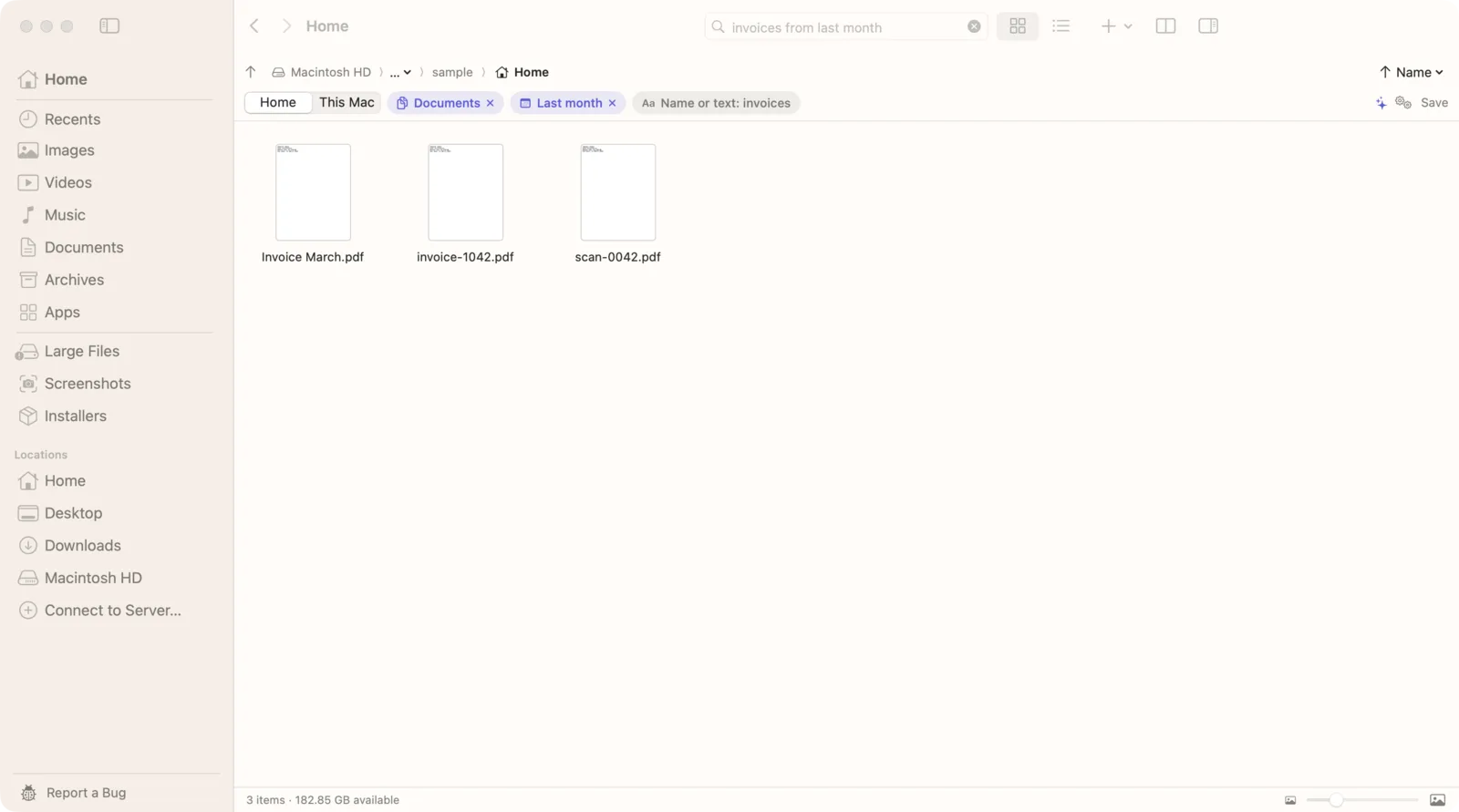
Searches you can type
pdfs containing "security deposit": PDFs with that exact phrase inside. Put a phrase in quotes after containing.documents mentioning "Maple Street" from last year: Word files, PDFs and other documents, by a phrase inside and a date.spreadsheets containing rent in Downloads: only spreadsheets, only in Downloads.text in screenshots wifi password: screenshots with those words in the picture.monthly rent in October: in our demo files, this found a spreadsheet with a Rent column and a scanned lease PDF that says “a monthly rent of $2,400”.
Without containing, your words match file names and the text inside files. Seek always lists exact name matches first, then names that contain your words, then files that contain the words inside them. So budget puts Budget 2026.xlsx on top, with the documents that only mention a budget below it. Plurals are handled too: invoices also finds “invoice”.
Which files Seek can search inside
Seek reads text from PDFs, Word (.docx, .doc), Excel (.xlsx), PowerPoint (.pptx), OpenDocument files, RTF, web pages and web archives, plain text and Markdown, CSV, email files (.eml), subtitles, calendar and contact files, Jupyter notebooks and code. With text recognition on, it also reads words in images (PNG, JPEG, HEIC and more) and in scanned PDFs, using Apple's text recognition on your Mac.
It reads the folders in your home folder, such as Desktop, Documents and Downloads, plus iCloud Drive, in the background. Newest files go first, and it pauses when your battery is low. Both settings are in Settings › Search › Text inside files, and both are on from the start.
Finder vs Seek for searching inside documents
| Feature | Finder | Seek |
|---|---|---|
| Search the text inside documents | ✓ | ✓ |
| Its own text recognition for scans and screenshots | Relies on Spotlight | ✓ |
| Say “containing” to require words inside | Contents contains | ✓ |
| Name matches listed before content matches | — | ✓ |
| Search one folder, Home or the whole Mac | ✓ | ✓ |
| Find words in folders Spotlight skips | — | Documents, read on the fly |
| Filters in plain English (type, date, size, place) | Add rules by hand | ✓ |
Finder is fine for a one-off contents search in a folder Spotlight has indexed. Seek helps when the file is a scan, when the word is in a screenshot, or when you'd rather type one sentence than build rules.
Tips for finding documents containing text on Mac
- Search for an unusual word. A name, a number or a street beats a common word like “report”.
- Use an exact phrase in quotes when the words are common on their own.
- Narrow by type and date.
pdfs containing tax from 2025is faster to scan than every file that mentions tax. - Search the right place. If you know it's in Downloads, say so:
in Downloads. See how to search within a folder. - Can't remember any words? Describe the file instead. See how to find a file when you don't know its name.
Is it private?
Yes. Finder and Spotlight index on your Mac, and so does Seek. Seek reads text, recognizes words in images and searches without uploading anything. No file, file name or file content leaves your Mac.
Questions
How do I search the contents of files on a Mac?
In Finder, press ⌘F, type a word, and choose “Contents contains” from the menu under the search field. Pick This Mac or the current folder next to Search. Spotlight (⌘Space) searches inside files too.
Why can't Finder find a word I know is in a file?
Usually the search is limited to one folder, the folder is excluded from Spotlight, Spotlight hasn't finished indexing, or the file is a scan or image with no text layer for Spotlight to read.
Can I search inside PDFs and Word documents at the same time?
Yes. Finder's contents search covers both when Spotlight has indexed them. In Seek, a search like “documents containing invoice” covers PDFs, Word, Excel, PowerPoint and more in one list.
Can Seek search words inside scanned PDFs and screenshots?
Yes. With text recognition on, Seek reads the words in images and scanned PDFs on your Mac, so a search for those words finds them.
Does Seek upload my documents to search them?
No. Seek reads and searches your files on your Mac. No file, file name or file content leaves it.

Find it by what it says.
Search inside documents, scans and screenshots, all on your Mac. One-time purchase, no subscription.