How to search text in multiple PDFs on Mac
To search text in multiple PDFs on a Mac, use Finder or Spotlight, not Preview. Press ⌘F in a Finder window, type kind:pdf followed by your word, and Finder lists every PDF that contains it. Preview only searches the PDF you have open. Below are the steps, the cases where they fall short (scanned PDFs, mixed results), and how Seek searches a whole folder of PDFs in one sentence.
Why Preview can't search multiple PDFs
Preview's search (Edit › Find, or ⌘F) is built for one document. It lists every match in that PDF, with the page it's on, which is great once you know which file you need. It doesn't search a folder. So the job has two steps: find which PDFs contain the text, then open the right one and find the spot.
How to search multiple PDFs on Mac with Finder
- Open the folder that holds your PDFs, for example Documents or Downloads.
- Press ⌘F.
- Type
kind:pdf, a space, and your word:kind:pdf invoice. - Next to Search:, choose the folder's name to stay in that folder and its subfolders, or This Mac to look everywhere.
- Open a result in Preview and press ⌘F again to jump to the word on the page.
If you prefer menus: after typing your word, choose Contents contains from the list under the search field, then click + on the right of the search bar and set Kind to PDF.
Spotlight works too. Press ⌘Space and type kind:pdf invoice. It shows the top matches; press ⌘↩ on a result to show it in Finder.
When Finder's PDF search falls short
- Scanned PDFs don't show up. Finder searches the text Spotlight has read from each PDF. A scan is a picture of a page with no text layer, so there's nothing to match. See how to search scanned PDFs.
- Name matches get buried. A PDF named
Invoice-2041.pdfsits in the same list as every PDF that mentions “invoice” once. - Some folders are skipped. Folders and drives excluded from Spotlight, or not indexed yet, aren't searched. See Finder search not finding files.
- Combining filters takes clicks. “PDFs in Downloads, from this month, that mention the landlord” is three rules in Finder.
How to find a PDF by its contents with Seek
Seek is a file manager that runs beside Finder. It searches the PDFs in a folder by name and by the text inside them, and it reads scanned PDFs with text recognition on your Mac.
- Open the folder with your PDFs in Seek and press ⌘F.
- Type a sentence, for example
pdfs containing invoice. - Seek shows how it understood you as chips under the search field: PDFs and Containing “invoice”. Remove any chip with its ×.
- Pick where to search next to the chips: the current folder, Home, or This Mac.
- Press Space to look at a result in Quick Look, or open it in Preview and press ⌘F to find the exact page.
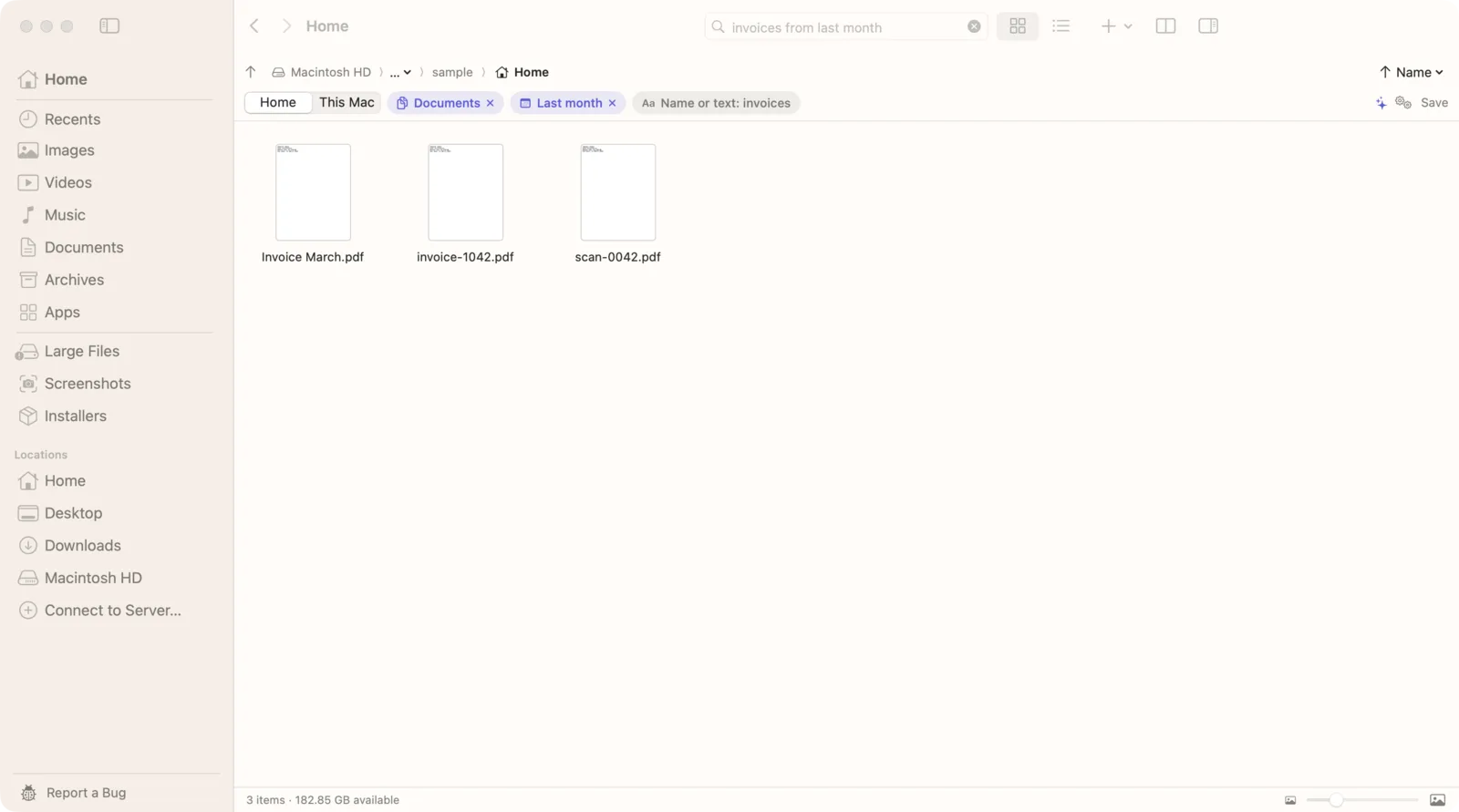
Example searches for PDFs
pdfs containing "amount due": an exact phrase inside the PDF.pdfs in Downloads containing invoice from this month: a word, a folder and a date at once.pdfs mentioning "Lemon Studio" from 2026: a client name inside, from one year.pdfs containing lease over 5 mb: big PDFs only.monthly rent in October: in our demo files, this foundscan_0042.pdf, a scanned lease that says “a monthly rent of $2,400”, along with a spreadsheet with a Rent column.
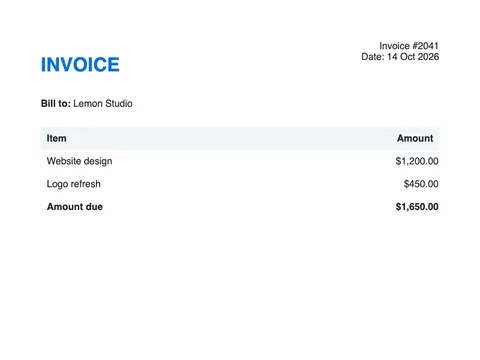
When you leave out containing, your words match PDF names as well as the text inside. Seek lists exact name matches first, then names that contain your words, then PDFs that only mention them. So pdfs invoice puts Invoice-2041.pdf at the top.
What Seek reads in your PDFs
- PDFs with text are read from their text layer, up to 150 MB per file.
- Scanned PDFs are read with Apple's text recognition, on your Mac. Seek treats a PDF with almost no text as a scan and reads its first 20 pages.
- Where: the folders in your home folder, such as Desktop, Documents and Downloads, plus iCloud Drive, in the background. When you search a folder, Seek also reads the text of PDFs there that it hasn't read yet (scans are read in the background only).
Both settings are in Settings › Search › Text inside files and are on from the start. Reading a large library takes a while the first time. It goes newest first and pauses when your battery is low.
Finder vs Seek for searching text in multiple PDF files
| Feature | Finder | Seek |
|---|---|---|
| Search the text in many PDFs at once | ✓ | ✓ |
| Words inside scanned PDFs | Relies on Spotlight | ✓ |
| Kind, folder, date and words in one sentence | Add rules by hand | ✓ |
| PDFs named after your word listed first | — | ✓ |
| Search folders Spotlight skips | — | ✓ |
| Jump to the page with the match | — | — |
Neither shows the page inside the PDF. That last step is Preview's job: open the PDF and press ⌘F.
Tips for searching a folder of PDFs
- Pick a rare word. An invoice number, a client name or an address finds the right PDF faster than “contract”.
- Use quotes for phrases.
"security deposit"skips PDFs that only have one of the two words. - Add a date when you remember it.
from last monthorin 2025cuts the list down fast. - Search one folder. See how to search within a folder on Mac.
- Words in other documents too? See how to search file contents on Mac.
Questions
How do I search text in multiple PDFs at once on a Mac?
Open the folder in Finder, press ⌘F and type kind:pdf followed by your word. Finder lists every PDF that contains it. Then open one in Preview and press ⌘F to find the spot.
Can Preview search multiple PDFs?
Preview searches the PDF you have open. Use Finder or Spotlight to find which PDFs contain your words, then use Preview to find the page.
Why doesn't a PDF show up when I search for a word in it?
It's probably a scan with no text layer, or it's in a folder Spotlight doesn't index. Seek reads scanned PDFs with text recognition and searches the folder you choose directly.
Does Seek show which page of the PDF matched?
No. Seek finds the PDF. Open it in Preview and press ⌘F to jump to the word.
Is there a size limit for PDFs in Seek?
Seek reads PDFs up to 150 MB. For scanned PDFs, it reads the first 20 pages.

Every PDF, one search.
Search inside all your PDFs, scans included, on your Mac. One-time purchase, no subscription.