How to search scanned PDFs on Mac
You can't search scanned PDFs on a Mac with Finder or Spotlight alone, because a scan is a picture of a page. There's no text in the file for them to read. You have two ways around it: add a text layer to each scan with OCR (optical character recognition), which makes the scanned PDF searchable, or use a search app that reads the words in scans itself. This guide covers both, including how Seek finds words in scanned PDFs on your Mac without changing the files.
Why you can't search a scanned PDF
A PDF made from a document on a computer, like an invoice exported from an app, has a text layer: the actual letters, stored alongside how the page looks. Spotlight reads that layer, and so can Finder's search and Preview's Find.
A PDF made by a scanner, a phone scanning app or a copier is usually just images of pages. It looks the same on screen, but to your Mac it's a photo. Search has nothing to match.
How to tell if a PDF is a scan
- Open the PDF in Preview.
- Press ⌘F and search for a word you can see on the page.
- If Preview finds nothing, or you can't select single words with the text tool, the PDF has no text layer. It's a scan.
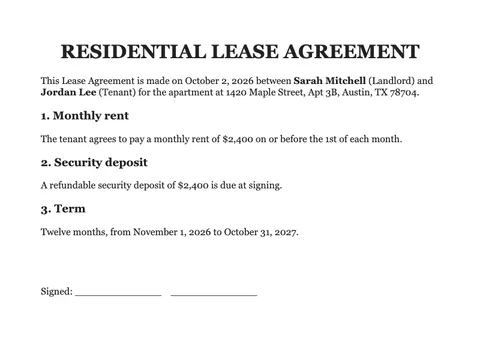
scan_0042.pdf, a scanned lease from our demo files. To Finder it's a picture; Seek reads the words.Built-in ways to read text in a scan
Live Text in Preview and Quick Look
On recent versions of macOS, Live Text lets you select and copy text in images, and often in scanned pages, right in Preview or Quick Look. Hover over the text until the pointer changes, then drag to select it. This is handy for copying a single number. It only works on the page you're looking at, though. It doesn't add a text layer, so Finder and Spotlight still can't find the file.
How to make a scanned PDF searchable on Mac
To make a scan searchable everywhere, you need to add a text layer with OCR and save it as a new PDF. macOS doesn't have a button for this in Finder or Preview, so use one of these:
- A PDF editor with OCR. Apps such as Adobe Acrobat can recognize the text in a scan and save a searchable PDF.
- Your scanner's software or scanning app. Many can save scans as “searchable PDF” directly. Turn it on so future scans don't need fixing.
OCR in an editor works one file at a time, or in batches if the app supports it. That's fine for a few important documents. It's slow for years of scanned bills, receipts and letters, and it creates new copies of each file to keep track of.
How to search scanned PDFs on Mac with Seek
Seek is a file manager that runs beside Finder. It reads the text in scanned PDFs and images with Apple's text recognition, on your Mac, and keeps what it reads in its own search index. Your PDFs aren't changed or re-saved. You just search.
- Install Seek and let it read your files. Text reading starts in the background after setup. It covers the folders in your home folder, such as Desktop, Documents and Downloads, plus iCloud Drive. Newest files go first.
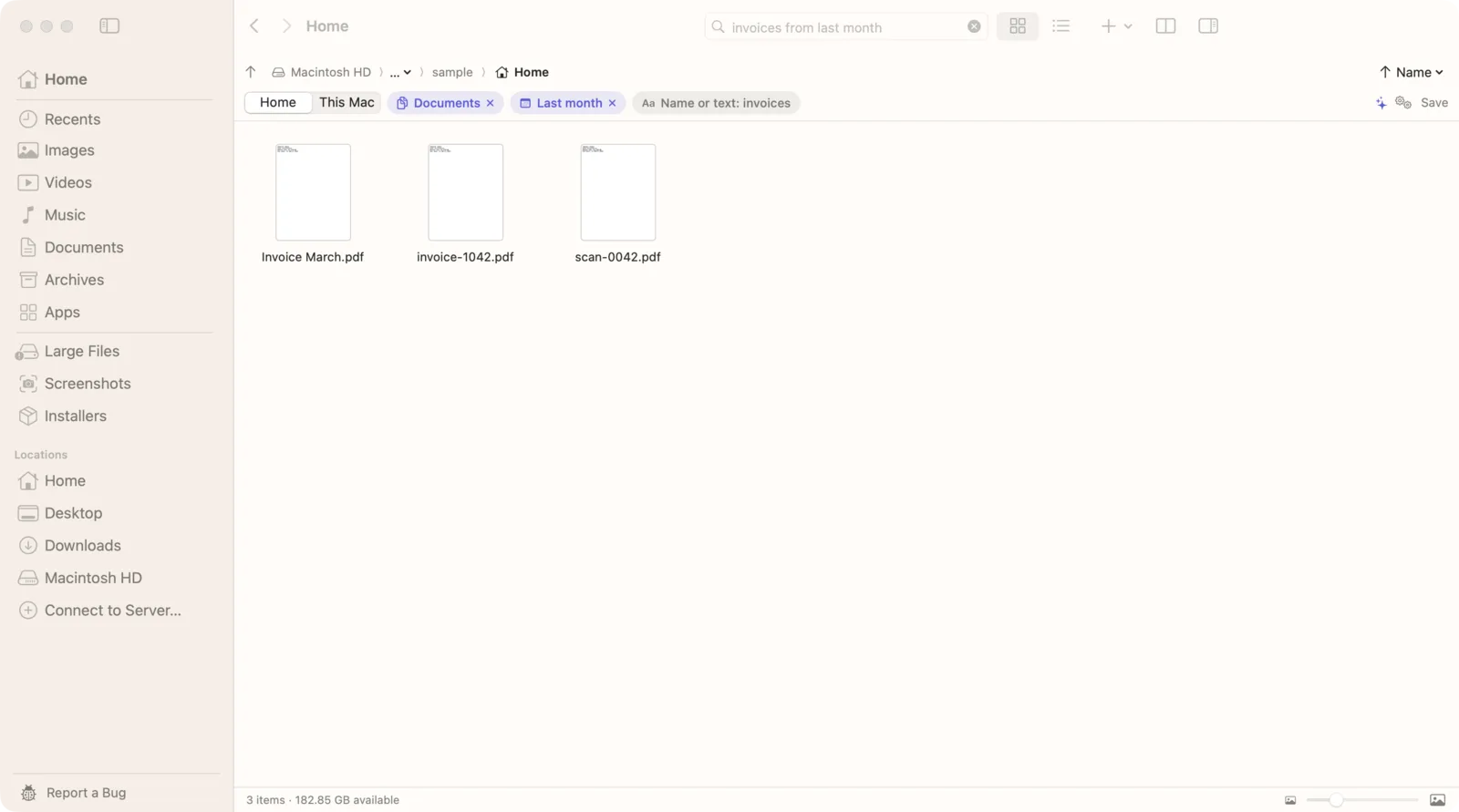
- Press ⌘F and type the words you remember:
pdfs containing "security deposit". - Check the chips under the search field: PDFs and Containing “security deposit”. Remove any that are wrong.
- Pick where to search: the current folder, Home, or This Mac.
- Press Space to check the scan in Quick Look.
In our demo files, the search monthly rent in October found scan_0042.pdf, a scanned lease that says “a monthly rent of $2,400”, along with a budget spreadsheet with a Rent column. Nothing about the scan's name says “rent”. Seek found it by the words on the page.
More searches for scans
pdfs containing "policy number" in Documents: an insurance letter you scanned years ago.pdfs mentioning deductible from 2024: a word and a year.documents containing "1420 Maple Street": any scan, PDF or Word file with that address.text in images receipt total: photos of paper receipts, not just PDFs. See searching text in screenshots and photos.
What to know about Seek's OCR
- It reads the first 20 pages of each scanned PDF. A PDF with almost no text is treated as a scan; one with a real text layer is read from that layer instead, in full.
- Clear printed text works best. Like any OCR, faint, skewed or handwritten pages are read less reliably.
- It's on by default. The settings are in Settings › Search › Text inside files: “Read text inside documents, PDFs and other files” and “Also read text in images and scanned PDFs (OCR)”.
- It's gentle on your Mac. Reading runs at low priority, can be paused from the activity spinner, and waits when your battery is under 20% or the Mac is hot.
- The first scan can take a moment. Right after installing, macOS prepares its text recognition once, so the first file may take longer.
- External drives are searched by name and by the text of ordinary documents, but scans there aren't read with OCR.
Finder vs Seek for scanned PDFs
| Feature | Finder | Seek |
|---|---|---|
| Find a scan by the words on its pages | Only after you add OCR | ✓ |
| Needs a new copy of each PDF | For OCR | — |
| Reads text in photos and screenshots too | Live Text, one at a time | ✓ |
| Works offline, on your Mac | ✓ | ✓ |
| Kind, date, folder and words in one search | Add rules by hand | ✓ |
If you share a scan with someone else, a PDF with a real text layer is still worth making: their Mac can search it too. For finding your own scans, Seek saves you converting them one by one.
Is OCR in Seek private?
Yes. Seek uses Apple's text recognition, which runs on your Mac. Scans aren't uploaded, and no file, file name or file content leaves your Mac. Leases, tax forms and medical letters stay where they are.
Questions
Why can't I search my scanned PDF on a Mac?
A scanned PDF is an image of each page with no text layer. Finder, Spotlight and Preview search text, so there's nothing for them to match until the scan is read with OCR.
How do I make a scanned PDF searchable on Mac?
Run OCR on it in a PDF editor with that feature, such as Adobe Acrobat, and save it as a searchable PDF. Many scanning apps can also save searchable PDFs directly.
Can Seek search scanned PDFs without converting them?
Yes. Seek reads scanned PDFs with Apple's text recognition on your Mac and keeps the text in its own search index. Your PDF files aren't changed.
How many pages of a scanned PDF does Seek read?
The first 20 pages. PDFs that already have a text layer are read from that layer instead.
Is OCR done online?
No. Seek's text recognition runs on your Mac, and nothing is uploaded.

Your scans, searchable.
Seek reads the words in scanned PDFs on your Mac. One-time purchase, no subscription.