Finder search not finding files? What to check on your Mac
When Finder search isn't finding files you know exist, the cause is almost always one of a few things: the search is looking in the wrong place, Spotlight was told to skip that folder, Spotlight's index is still being built or is damaged, or the file sits somewhere Finder search leaves out. Work through the checks below in order. Most of them are quick.
Why Finder search can't find your files
Finder doesn't look through your folders when you search. It asks Spotlight, the index macOS keeps of your files' names, details and contents. If a file isn't in that index, or the search is pointed at the wrong place, Finder shows no results even though the file is right there.
So when Finder search is not working, you're really checking Spotlight. The same fixes help when ⌘Space can't find a file either.
1. Check where Finder is searching
As you type in the search field of a Finder window, a bar appears under the toolbar: Search: This Mac and the name of the folder you're in. If the folder is selected, Finder only looks inside that folder and its subfolders. If the file is anywhere else, you get “no results”.
- Click This Mac in that bar to search everywhere Spotlight has indexed.
- To change what Finder picks by default, open Finder › Settings › Advanced (Preferences on older versions of macOS) and set When performing a search to Search This Mac, Search the Current Folder or Use the Previous Search Scope.
2. Check the name, the spelling and the kind
Finder matches what you type against file names and against the words inside files. A common word like “tax” can bury the file you want under hundreds of documents that mention it. Others turn up nothing because of one wrong letter.
- Search the name only. As you type, Finder shows a menu under the search field. Pick Name matches: … to ignore file contents. There's more on this in how to search by file name only.
- Check the spelling. One typo is enough to get no results. Try a shorter piece of the name: “recei” finds both “receipt” and “Receipts 2025”.
- Remove filters you forgot about. If you added a criterion with the + button, such as Kind or Last opened date, it stays until you remove it with the – button.
3. Make sure Spotlight isn't skipping the folder
Spotlight keeps a privacy list. Folders and drives on it are never indexed, so Finder can't find anything inside them. People add folders there and forget, and some apps and backup tools add their own.
- Open System Settings and go to the Spotlight settings. Depending on your version of macOS they're under Siri & Spotlight or in their own Spotlight section.
- Open the Spotlight Privacy list (the button's wording varies a little between versions).
- If the folder or drive you're searching is listed, select it and click the minus button. Spotlight starts indexing it again.
4. Check whether Spotlight is still indexing
After a macOS update, a move to a new Mac, or connecting a big drive, Spotlight indexes again. Until it finishes, searches can miss files or show only some of them. Leave the Mac awake and plugged in, and try again later.
You can check indexing in Terminal (in Applications › Utilities):
mdutil -s /shows whether indexing is enabled for your startup disk.- If it says indexing is disabled,
sudo mdutil -i on /turns it back on. You'll be asked for your Mac's password, and nothing appears as you type it.
5. Rebuild the Spotlight index
If the index is damaged, Finder search keeps returning wrong or empty results no matter what you type. Rebuilding it fixes that.
Before you start: a rebuild erases Spotlight's index and reads your whole disk again. Your files aren't touched, but searches stay incomplete until it's done, which can take a long time on a big disk. Do it when you can leave the Mac on.
- From System Settings: add your disk or the folder to the Spotlight Privacy list, wait a moment, then remove it again. Spotlight indexes it from scratch.
- From Terminal:
sudo mdutil -E /erases the index of your startup disk and builds it again.
6. Look where Finder search doesn't
Even with a healthy index, Finder search leaves some places out.
- System and Library files. Finder search skips system files unless you ask. Click the + under the search field, choose Other… from the first menu, add System files, and set it to are included.
- Hidden files. Files whose names start with a dot are hidden. Press ⇧⌘. in a Finder window to show them, then browse to them.
- Files inside packages. Apps and the Photos library are packages: Finder shows each as one item. Photos in the Photos library are found in the Photos app, not in Finder.
- External drives. A drive Spotlight hasn't indexed returns little or nothing. See how to search an external hard drive.
- iCloud Drive. With Optimize Mac Storage on, older files may be stored only in iCloud and show a cloud icon. If a search by what's inside one comes up empty, download it and search again.
Still can't find files? Search without relying on Spotlight alone
Every fix above is about Spotlight, because Finder search is Spotlight. If the index is broken, still rebuilding, or skipping a folder, Finder has no other way to look.
Seek is a Mac file manager that runs beside Finder. It uses Spotlight too, because it's fast. But when you search a folder or your Home folder, it doesn't stop there:
- It walks the folders you're searching and checks every file name, type, date and size itself. A file Spotlight never indexed still shows up.
- It keeps its own index of the text inside your files: documents, PDFs, and with text recognition, screenshots and scanned pages. That covers the folders in your home folder and iCloud Drive, and it runs on your Mac.
- It reads documents it hasn't indexed yet as it walks, so the words inside a PDF or Word file are found even where Spotlight doesn't look.
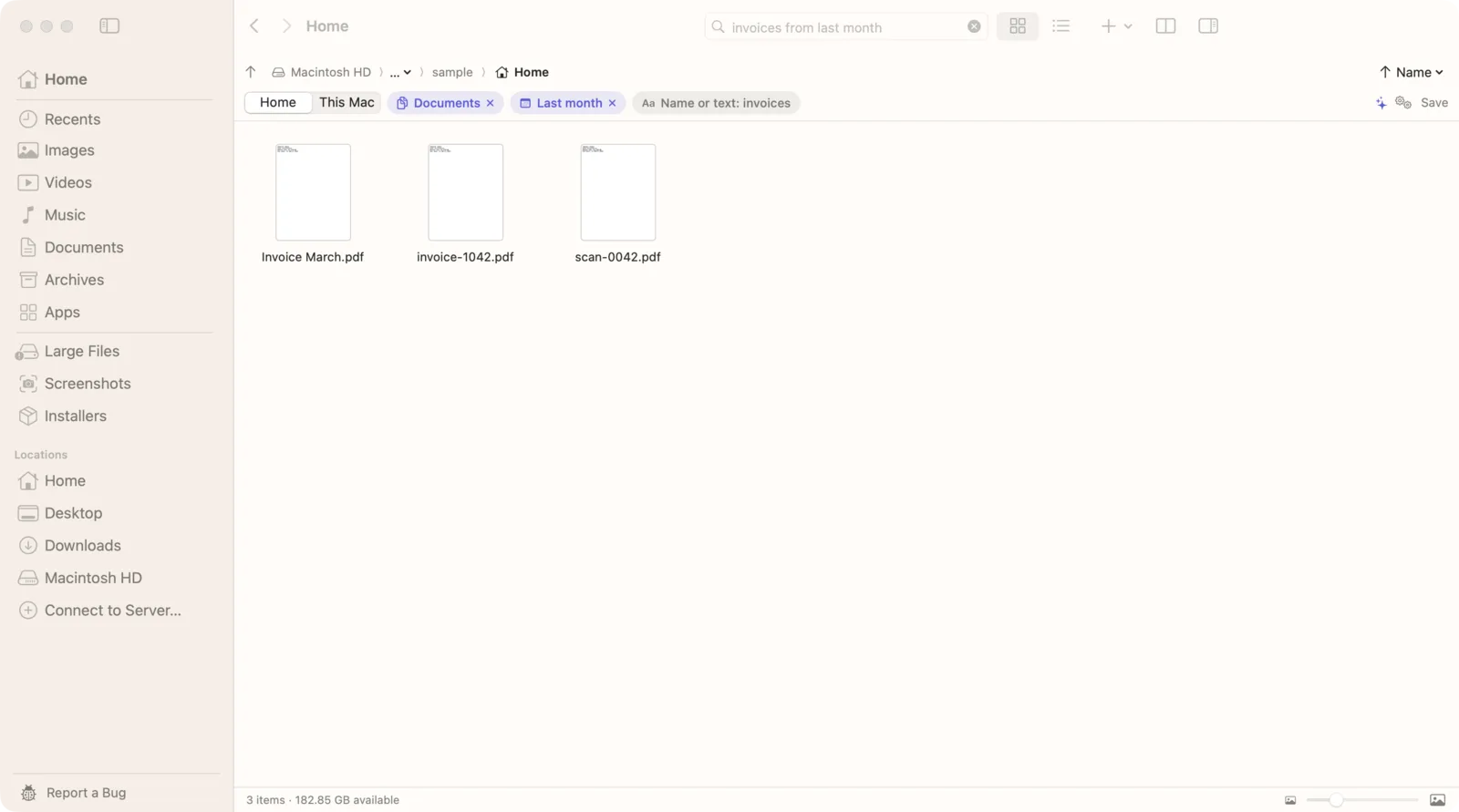
How to find a file with Seek
- Press ⌘F and type what you remember: part of the name, words inside the file, or a description like “pdfs from last week containing invoice”.
- Choose where to look with the switch under the search field: the current folder, Home or This Mac. The current folder and Home use everything above. This Mac asks Spotlight only, so if Spotlight is acting up, use Home.
- Check the chips. Each part Seek understood (type, date, place, words inside) appears as a chip. If one is wrong, remove it.
- Read the results from the top: exact name matches come first, then names containing your words, then files with your words inside them.
You can also put the place in the search: “contract in Downloads”, “screenshots on my desktop containing wifi”, or “pdfs on external drive”.
Finder search vs Seek
| Feature | Finder | Seek |
|---|---|---|
| Works when Spotlight skips a folder | — | ✓ |
| Works while Spotlight is rebuilding | Partly | Name and document text |
| Name matches listed first | With “Name matches” | ✓ |
| Shows how it read your search | — | ✓ |
| Dates, types and places in plain English | Through menus | ✓ |
| Find photos by what's in them | — | ✓ |
Seek doesn't replace Finder. It runs next to it, and you can show any result in Finder. For the full picture, see Seek as a Finder alternative.
Questions
Why is Finder search not finding files I know exist?
Usually the search is set to the current folder instead of This Mac, the folder is on Spotlight's privacy list, Spotlight is still indexing, or the file is a system, hidden or packaged file that Finder search leaves out.
How do I make Finder search the current folder by default?
Open Finder › Settings › Advanced and set “When performing a search” to “Search the Current Folder”. Choose “Search This Mac” if you want the opposite.
Is it safe to rebuild the Spotlight index?
Yes. A rebuild only erases Spotlight's index, not your files. Searches stay incomplete until Spotlight has read your disk again, which can take a while on a big disk.
Does Seek need Spotlight to work?
No. Seek uses Spotlight when it's available, but when you search a folder or your Home folder it also checks file names directly and uses its own index of the text inside your files. The This Mac option uses Spotlight only.

Find the file you know is there.
Search by name, by the words inside, or by what a photo shows. One-time purchase, no subscription.