How to search by file name only in Mac Finder
Finder search matches your words in file names and inside files, so a search for “invoice” can bury the one file named invoice under dozens of documents that mention it. To make Finder search by file name only, type your word and pick Name matches from the suggestions that drop down. Here's how that works, the more precise “Name contains” criteria, and how to keep name-only searches for later.
Why Finder shows files that don't have your word in the name
When you type in Finder's search field, it searches with Spotlight, which looks at names and at the text inside documents, PDFs, emails and more. That's useful when you're looking for content. When you know part of the file name, it just adds noise: the file you want is in there somewhere, between files that only mention the word.
Method 1: pick “Name matches” in Finder
- Open a Finder window and press ⌘F.
- Type part of the file name, for example invoice.
- Wait a moment for the list of suggestions under the search field. Under Filenames, click Name matches: invoice.
- Your word turns into a token in the search field, and the results only include files with that word in the name.
You can add a second token the same way, such as a kind suggestion, to narrow it further. To search one folder rather than the whole Mac, click the folder's name next to This Mac in the bar under the toolbar (see how to search within a folder).
Method 2: add a “Name contains” rule
For more control over how the name is matched, use search criteria:
- Press ⌘F in Finder. Leave the search field empty.
- Click the + at the right end of the search bar. A new row appears, usually starting with Kind.
- Click Kind and choose Name instead.
- Choose how to match: contains, begins with, ends with, is or matches.
- Type the text. Results update as you type, and they only look at file names.
Rows add up, so you can combine Name contains invoice with Kind is PDF and Created date is within last 30 days. If the attribute you need isn't in the menu, choose Other… to pick from the full list.
Method 3: save it as a Smart Folder
If you run the same name search often, click Save on the right of the search bar. Give it a name and tick Add To Sidebar. The Smart Folder reruns the search every time you open it, so new matching files appear by themselves.
Method 4: search file names from Terminal
Two built-in Terminal commands search names only:
mdfind -name invoiceasks Spotlight's index for files whose names contain “invoice”, anywhere on the Mac. Add-onlyin ~/Documentsto limit it to one folder.find ~/Documents -iname "*invoice*"walks the folder itself and lists names containing “invoice”, ignoring case. It works without Spotlight, so it also finds files Spotlight hasn't indexed.
Search by file extension
Looking for every file of one type, like all Keynote files or all zips? In Finder, add a Name ends with rule and type the extension, such as .key. You can also use Kind for broad types like PDF, Image or Presentation.
In Seek, type the type or the extension: “zips”, “pdfs”, “screenshots” or “.key”. It becomes a type filter you can combine with anything else, like “zips in Downloads older than a week”.
Where Finder's name search falls short
- It's buried. Name-only search is a suggestion or a hidden menu, not a setting, so you redo it every time.
- It depends on Spotlight. Folders Spotlight doesn't index, or files it hasn't caught up with yet, won't show up. See Finder search not finding files.
- No ranking by name. When you don't use Name matches, Finder doesn't put files named after your word above files that only mention it.
The Seek way: name matches always come first
Seek is a file manager that runs beside Finder. To be clear up front: it has no “file name only” switch. It doesn't need one for most searches, because it sorts results so names win:
- Exact name matches, such as a file called “invoice”.
- Names that contain your words, such as “Invoice-2041.pdf”.
- Files with your words inside them, such as a PDF that mentions an invoice.
- Photos that match the description, when the search is about pictures.
So the file you're thinking of sits at the top, and content matches are still there underneath if the name turns out to be different from what you remembered. Plurals work too: “invoices” finds files named “invoice”.
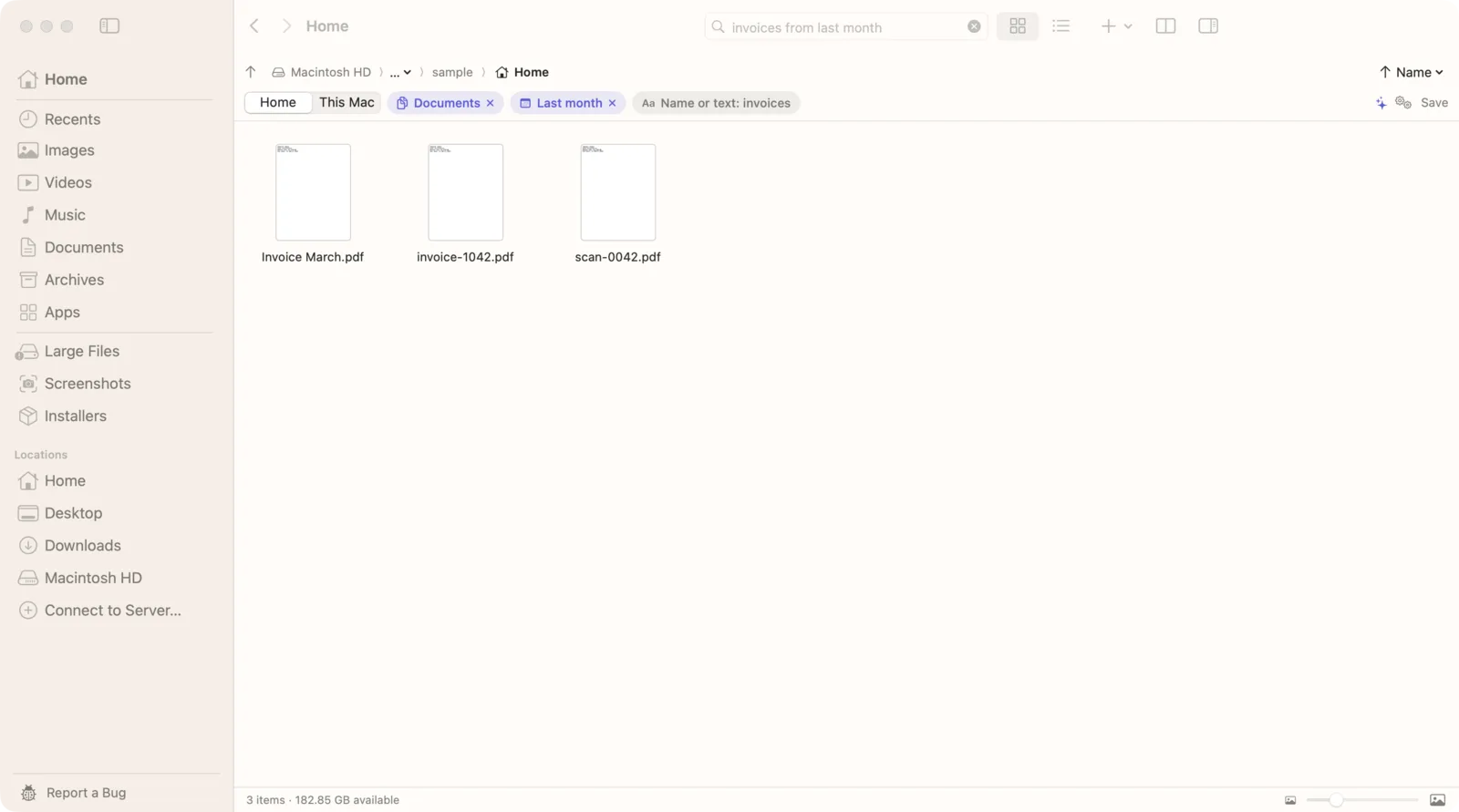
Narrow it down by typing
Instead of building rows of criteria, add what you know to the search and Seek turns it into filters you can see:
- “invoice pdfs from last month”: the word invoice, PDFs only, from last month.
- “zips in Downloads older than a week”: zip files in Downloads older than a week.
- “report over 5 mb”: files with “report” in the name or inside, larger than 5 MB.
Each filter shows up as a chip under the search field. Click its ✕ to remove it.
Search where you are
Seek searches the current folder and its subfolders by default. A switch under the search field changes it to Home or This Mac, and naming a folder in the search, like “in Downloads”, searches there. Seek also scans the folders it's searching as it goes, so it can find files by name even where Spotlight hasn't indexed them.
Finder vs Seek for searching file names
| Task | Finder | Seek |
|---|---|---|
| Name-only search | ✓ | Names ranked first |
| Begins with, ends with, is | ✓ | — |
| Saved searches | ✓ | — |
| Name matches on top, content below | — | ✓ |
| Filters by typing | — | ✓ |
| Works where Spotlight hasn't indexed | — | ✓ |
If you need exact rules like “name ends with .key” as a saved search, Finder's criteria do that well. If you want to type a name and have the right file on top, Seek is quicker.
When you don't remember the name at all
Name searches only work when you remember part of the name. If you don't, search for what you do remember instead: a word inside the file, roughly when you got it, or what a photo shows. See how to find a file when you don't remember its name and how to search file contents on Mac.
Questions
How do I search only file names in Finder?
Type your word in Finder's search field, then choose Name matches from the suggestions. Or press Command-F, click the plus button, change Kind to Name and choose contains.
Why does Finder search show files without my word in the name?
Finder searches with Spotlight, which also matches the text inside documents. Pick Name matches or add a Name rule to limit the search to file names.
Can I save a file name search in Finder?
Yes. After setting up the search, click Save on the right of the search bar. It becomes a Smart Folder that updates by itself, and you can add it to the sidebar.
Does Seek have a file-name-only mode?
No. Seek ranks results so exact name matches come first, then names containing your words, then files that contain the words inside them, so name matches are always at the top.

The file you named, on top.
Seek ranks name matches first and turns what you type into filters. One-time purchase, no subscription.