How to search within a folder on Mac
To search within a folder on Mac, open the folder in Finder, press ⌘F, and click the folder's name in the bar under the toolbar instead of “This Mac”. Finder then searches that folder and all its subfolders. Below: how to make that the default, why it sometimes still shows nothing, and a quicker way to search a specific folder just by naming it.
Search the current folder in Finder
- Open the folder you want to search in a Finder window.
- Press ⌘F, or click the magnifying glass in the toolbar and start typing.
- Look at the bar below the toolbar. It says Search: This Mac and, next to it, the folder's name.
- Click the folder's name. The results now only come from that folder.
Finder's folder search includes everything inside the folder, so subfolders are searched too. You don't need a separate setting to search subfolders on Mac.
Make Finder search the current folder by default
Out of the box, Finder searches the whole Mac every time, which is why a search in Downloads fills up with files from everywhere else. To change it:
- In Finder, choose Finder › Settings (called Preferences on older macOS versions).
- Click Advanced.
- Under When performing a search, choose Search the Current Folder.
The other options are Search This Mac (the default) and Use the Previous Search Scope, which remembers whatever you picked last time.
Search a specific folder in Finder
To search a folder you don't have open, you have to go there first. A few shortcuts help:
- Click the folder in the sidebar, then press ⌘F.
- Use Go › Go to Folder (⇧⌘G) and type the folder's path.
- Drag a folder you search often to the sidebar so it's one click away.
Narrow a folder search further
Once you're searching a folder, click the + at the right of the search bar to add criteria, such as Kind is PDF or Last opened date is within last 7 days. Each row is another filter. To keep a search, click Save and it becomes a Smart Folder.
Why Finder's folder search sometimes finds nothing
Finder search uses Spotlight's index. If the index doesn't cover a folder, searching inside it in Finder can come back empty even though the files are right there. That happens when:
- the folder, or a drive it's on, is listed under Spotlight's privacy settings, so it's never indexed;
- the files were just copied in and Spotlight hasn't caught up yet;
- the folder is on a drive that Spotlight doesn't index.
It also matches words inside files, so a search for “report” in a folder can show documents that mention a report rather than files named that. For more fixes, see Finder search not finding files.
Search a folder from Terminal
If you're comfortable with Terminal, two built-in commands search one folder and everything under it:
mdfind -onlyin ~/Downloads invoiceasks Spotlight's index for files in Downloads that match “invoice”, by name or content. It's fast, but only as complete as the index.find ~/Downloads -iname "*invoice*"walks the folder itself and lists every file with “invoice” in its name, ignoring case. It doesn't need Spotlight, so it also works in folders Spotlight skips, but it only looks at names.
Replace ~/Downloads with any folder. Tip: type the command, then drag the folder from Finder into the Terminal window to paste its path.
A faster way: search a folder by naming it, with Seek
Seek is a file manager that runs beside Finder. It searches the folder you're in by default, and you can name any folder right inside the search.
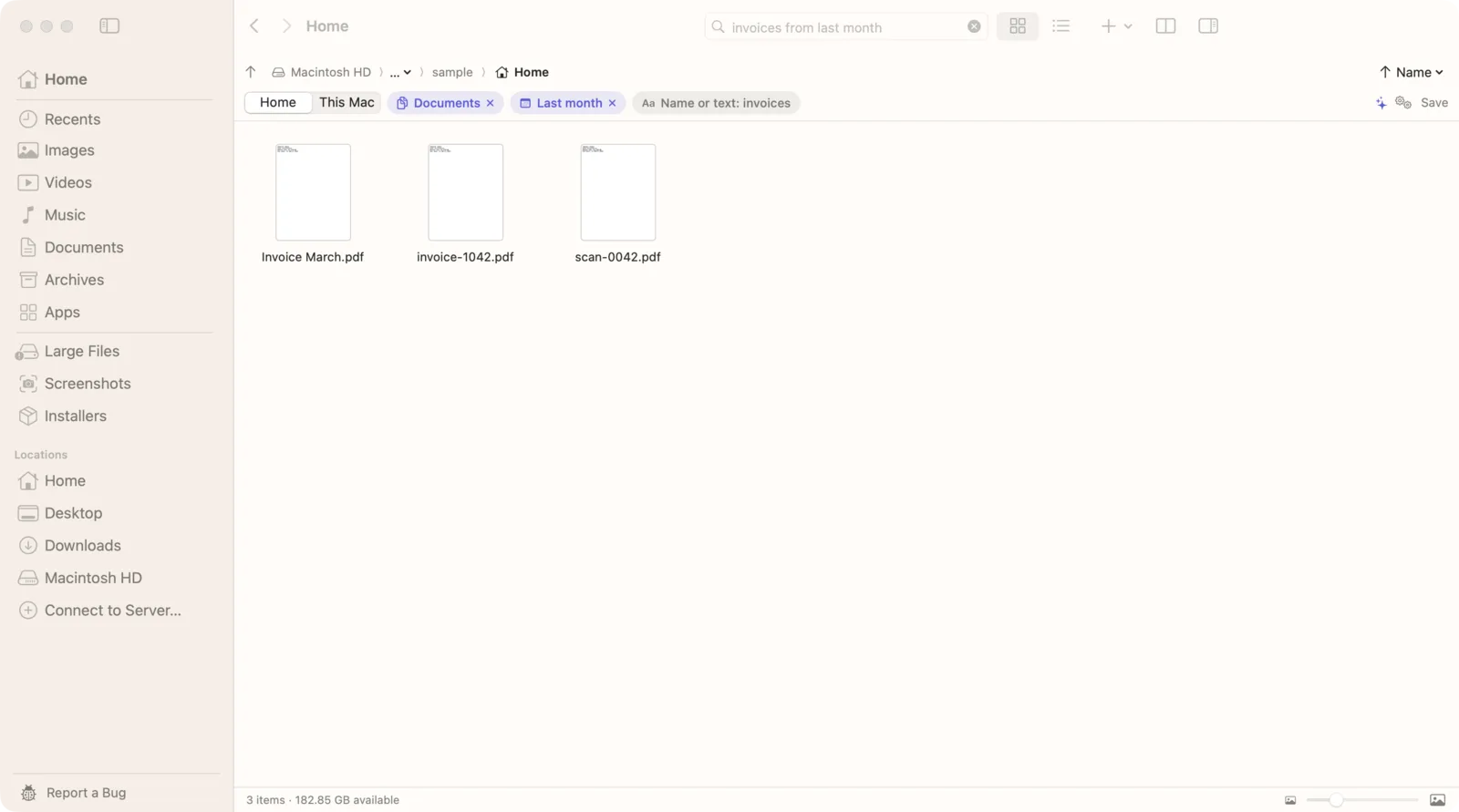
1. Search the folder you're in
Open a folder in Seek and press ⌘F. Search starts in that folder and its subfolders. A switch under the search field shows where you're searching: the folder's name, Home or This Mac. Click another part to widen the search without retyping.
To change where every search starts, open Settings › Search and set Search starts in to Current folder, Home or This Mac. Current folder is the default.
2. Name the folder in your search
You don't have to open a folder first. Say where to look and Seek searches there, whatever the switch is set to:
- “zips in Downloads older than a week” searches Downloads for zip files older than a week.
- “pdfs on my desktop” searches the Desktop.
- “images in codex folder” finds the folder named codex in your home folder and searches it, wherever it is.
- “screenshots in this folder” or “invoices here” searches the folder you have open.
- “photos on external drive” searches connected drives.
Each part shows up as a chip under the search field, like In Downloads, so you can see what Seek understood and remove anything that's wrong.
3. Search inside the files in that folder
Add containing to look for words inside documents: “pdfs in Downloads containing invoice”. Seek reads PDFs, Word, Excel, PowerPoint and text files, and text in screenshots and scanned PDFs, on your Mac. It also scans the folder as it searches and reads documents that haven't been indexed yet, so a folder Spotlight skips can still be searched. More in how to search file contents on Mac.
4. Results that put names first
Seek lists exact name matches first, then names that contain your words, then files with the words inside them. Files named “report” come before documents that merely mention one.
5. Search several folders at once
Finder searches one folder or the whole Mac, nothing in between. In Seek, choose Home in the switch to search all the folders in your home folder at once, such as Desktop, Documents, Downloads and Pictures.
6. Search a folder on an external drive
Open a folder on the drive and search, or type “on external drive” in the search. Seek scans the drive's folders as it searches, so it finds files by name, type, date and size, and the words inside documents, even when Spotlight hasn't indexed the drive. Photo search and text in images only cover the folders on your Mac. More in how to search an external hard drive.
Finder vs Seek for searching a folder
| Task | Finder | Seek |
|---|---|---|
| Search the current folder and subfolders | ✓ | ✓ |
| Current folder by default | After a setting change | ✓ |
| Search a folder by naming it | — | ✓ |
| Folders Spotlight doesn't index | — | ✓ |
| Name matches listed first | — | ✓ |
| Filters by typing (“older than a week”) | — | ✓ |
Questions
How do I make Finder search only the current folder?
Open Finder › Settings › Advanced and set When performing a search to Search the Current Folder. For a single search, click the folder's name next to This Mac in the bar under the toolbar.
Does Finder search subfolders?
Yes. When you search a folder in Finder, it includes every subfolder inside it.
Why does searching a folder in Finder show no results?
Finder relies on Spotlight's index. If the folder is excluded from Spotlight, newly copied, or on a drive Spotlight doesn't index, Finder can miss files that are there.
Can I search a folder without opening it first?
In Seek, yes. Name the folder in your search, such as zips in Downloads or images in codex folder, and Seek searches that folder and its subfolders.

Search where you are.
Seek searches the folder you're in, or any folder you name. One-time purchase, no subscription.