How to search files on an external hard drive on Mac
To search an external hard drive on Mac, open the drive in Finder, press ⌘F, and click the drive's name in the search bar so Finder looks only there. If that finds nothing, the drive probably isn't in Spotlight's index, and Finder search depends on it. Here's how to check and fix indexing, and how to search the drive without it.
Search an external drive in Finder
- Connect the drive and open it from the Finder sidebar, under Locations.
- Press ⌘F, or click in the search field and start typing.
- In the bar under the toolbar, click the drive's name instead of This Mac. Finder now searches only the drive.
- Narrow it down with the + button under the search field, for example Kind is PDF, or Last modified date within the last month.
The same works for a USB stick or an SD card. If you always want searches to start in the folder you're in, set Finder › Settings › Advanced › When performing a search to Search the Current Folder.
If the drive doesn't show up at all
You can't search a drive your Mac hasn't mounted. If it's missing from Finder:
- Check the sidebar setting. In Finder › Settings › Sidebar, make sure External disks is ticked under Locations.
- Mount it in Disk Utility. Open Disk Utility (in Applications › Utilities). If the drive is listed but grayed out, select it and click Mount.
- Try another cable or port. A drive that never appears in Disk Utility usually isn't reaching the Mac at all.
Finder search not finding files on an external drive?
Finder doesn't look through the drive when you search. It asks Spotlight. If Spotlight hasn't indexed the drive, Finder search comes back empty or incomplete even though the files are there. The usual reasons:
- Indexing is off for that drive.
- The drive is on Spotlight's privacy list. Some people add backup drives there on purpose and forget.
- Spotlight is still indexing it. A big drive you just connected takes a while.
- It's a network drive. Shared folders on a server or NAS usually aren't indexed by your Mac.
Check whether the drive is indexed
Open Terminal (in Applications › Utilities) and run this, with your drive's name in place of Backup:
mdutil -s /Volumes/Backup
If the name has spaces, put the path in quotes: mdutil -s "/Volumes/My Drive". It tells you whether indexing is enabled for that drive.
Turn indexing on
sudo mdutil -i on /Volumes/Backup turns it on. You'll be asked for your Mac's password, and nothing appears as you type it. Spotlight then reads the whole drive, and searches stay incomplete until it's done.
Also check the Spotlight Privacy list in System Settings, in the Spotlight (or Siri & Spotlight) settings. If the drive is listed, select it and click the minus button.
Rebuild a drive's index
If the drive is indexed but results are wrong or missing, rebuild its index with sudo mdutil -E /Volumes/Backup. This erases the drive's index and builds it again. It doesn't touch your files, but it takes a while, so keep the drive connected until it's done.
Spotlight keeps a drive's index on the drive itself, in a hidden folder. On a drive you share with other computers, or a drive you'd rather not have written to, you may prefer to search without indexing it.
Search a USB drive on Mac without indexing it
Terminal can search names on any drive without Spotlight: find "/Volumes/My Drive" -iname "*contract*" lists every file with “contract” in its name. It's thorough, but it only sees names, and there are no previews.
Seek, a Mac file manager that runs beside Finder, can search connected external drives without Spotlight's index. It walks the drive's folders, checks names, types, dates and sizes itself, and reads the text inside documents as it goes.
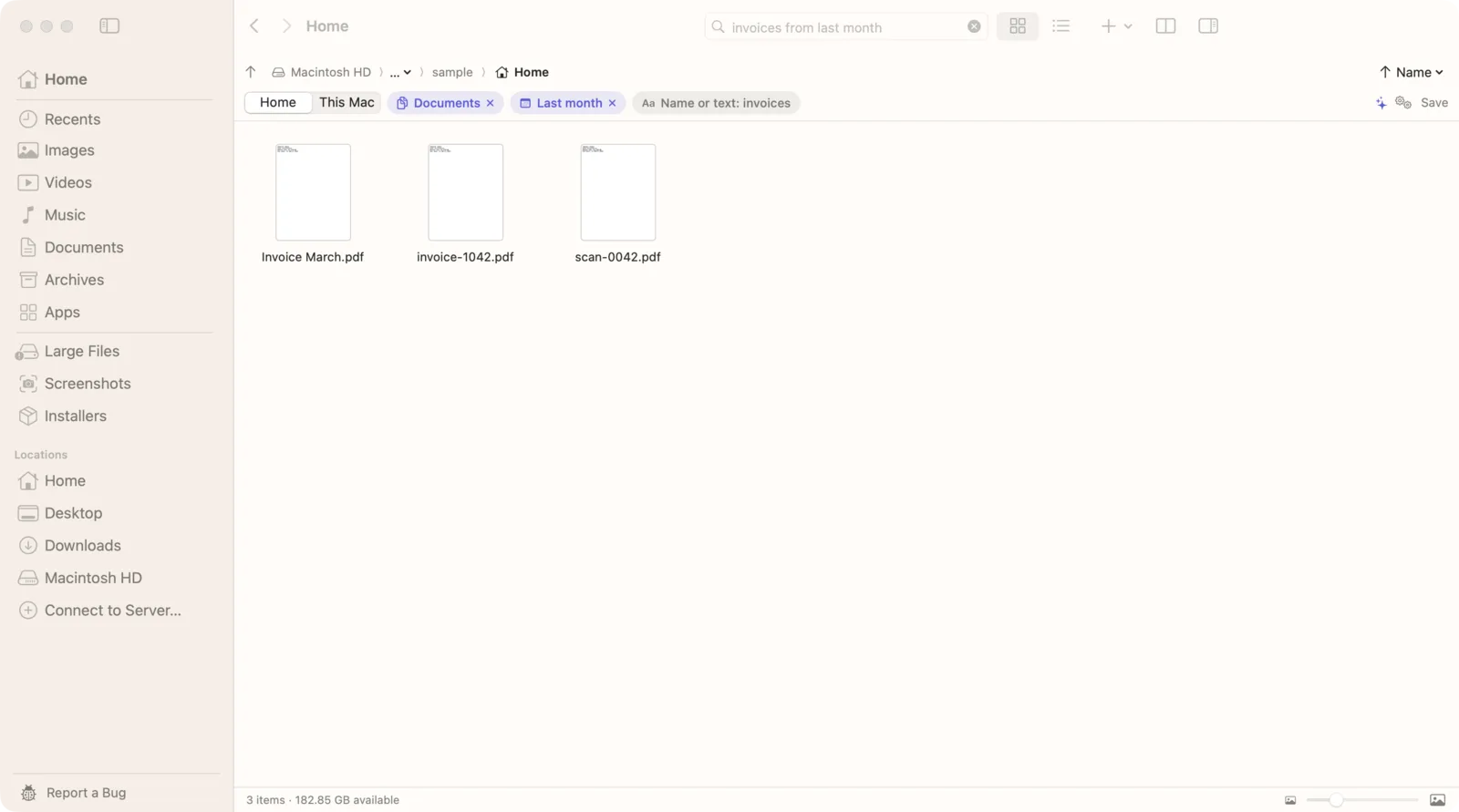
How to search an external drive with Seek
- Connect the drive.
- Press ⌘F in Seek and add on external drive to your search. “On usb”, “on usb stick” and “on sd card” work too.
- Seek searches every connected external drive (not network drives) and shows the place as a chip, On external drives. Remove the chip to search somewhere else.
- Or open the drive in Seek and search with the drive selected in the switch under the search field.
Searches to try:
- “pdfs on usb drive containing contract”: PDFs on any external drive with “contract” inside.
- “spreadsheets on my external hard drive containing budget”: Excel and other spreadsheets that mention a budget.
- “videos on external drive from 2024”: videos from 2024, by date.
What Seek can and can't do on an external drive
- Can: find files by name, type, date, size and place, whether or not Spotlight has indexed the drive.
- Can: find words inside PDFs that have a text layer, Word, Excel, PowerPoint and text files, reading them as it searches. Documents over 40 MB are skipped there.
- Can't: read text in images or scanned PDFs on the drive. Text recognition runs on the folders in your home folder and iCloud Drive.
- Can't: find photos by what's in them on the drive. Photo search covers image files in your home folders, Pictures and iCloud Drive. On a drive, find photos by name, date or size.
- Can't: search network drives with “on external drive”.
Searching an external drive: Finder vs Seek
| Feature | Finder | Seek |
|---|---|---|
| Search a drive Spotlight has indexed | ✓ | ✓ |
| Search a drive that isn't indexed | — | Names and document text |
| Words inside PDFs and Word files | If indexed | Read as it searches |
| Dates, types and sizes in plain English | Through menus | ✓ |
| Photos by what's in them | — | Not on drives |
If you mostly search the files on your Mac itself, see why Finder search misses files and how to search inside files.
Questions
Why can't Finder find files on my external drive?
Finder search relies on Spotlight's index. If the drive isn't indexed, is on Spotlight's privacy list, or is still being indexed, Finder search returns few or no results.
How do I make Spotlight index an external drive?
Make sure the drive isn't on the Spotlight Privacy list in System Settings, then run sudo mdutil -i on /Volumes/DriveName in Terminal. Spotlight then indexes the drive, which can take a while for a big one.
Can Seek search an external drive that isn't indexed?
Yes. Add “on external drive” to a search and Seek walks every connected external drive, matching names, types, dates and sizes, and reading the text inside documents as it goes.
Can Seek find photos by what's in them on an external drive?
No. Photo search and text recognition cover image files in your home folders, Pictures and iCloud Drive. On external drives, Seek finds photos by name, date and size.

Search every drive, indexed or not.
Plain-English search for your Mac and the drives you plug into it. One-time purchase, no subscription.