The best Finder alternatives for Mac, if you need to find files
Most people start looking for a Finder alternative for one of two reasons. Either they move a lot of files and want two panes side by side, or they keep losing files and Finder's search doesn't help. Most Finder replacements on the Mac are built for the first reason. This guide compares the well-known ones, and shows which kind of app helps when your real problem is finding things.
The short answer
- You move files to servers or between drives all day: a dual-pane manager like ForkLift or Commander One.
- You want every panel and option a file browser can have: Path Finder.
- You want a lightweight, keyboard-driven dual-pane browser: Marta.
- You can't find files, can't remember their names, or can't search inside them: Seek, a Mac file manager built around search.
None of these has to replace Finder completely. Many people keep Finder for the Desktop and everyday opening, and use a second app for the job Finder does badly.
What Finder leaves to you
Finder is a good file browser. It has tabs, Quick Look, tags and several views, and its search uses the Spotlight index, so it can find words inside many documents. The gaps show up when you don't know exactly what you're looking for:
- Finding a file you can't name. Finder search works best with the file name. Narrowing it down means adding criteria rows one by one, or typing Spotlight syntax like
kind:pdf. See how to find a file when you don't remember its name. - Search scope. Results often come from the whole Mac when you meant one folder. There's a fix, covered in how to search within a folder.
- Mixed-up results. A search for a word shows files that mention it next to files named after it, and there's no plain way to ask for names only. More in searching by file name only.
- Finding a photo. A picture saved as
IMG_4460.jpgin Downloads can't be found by what it shows. - Duplicates and space. Finder has no duplicate finder and won't point out old installers or forgotten downloads.
If Finder search returns nothing at all for a file you know exists, that's usually an index problem, not a missing feature. Here's what to check.
What to look for in a Finder alternative for finding files
If search is why you're switching, compare apps on these points, not on how many panes they have:
- Searching by description. Can you type what you remember (a kind of file, a rough date, a folder) without learning a query syntax?
- Searching inside files. Does it find the words inside PDFs, Word and Excel files, and scanned pages?
- Photos and screenshots. Can it find a photo by what it shows, or a screenshot by the text in it?
- Scope you control. Can you say “only this folder” or “only Downloads” and trust it?
- Visible filters. Can you see how the app understood your search, and fix one part of it?
- Privacy. Does reading your files happen on your Mac, or does it upload them?
The main Finder alternatives, compared
ForkLift
ForkLift is a dual-pane file manager. Its strengths are moving and syncing files, and connecting to remote places: FTP, SFTP and cloud storage show up like local folders. If your day involves uploading to servers or comparing two folders, it's a strong pick. Finding files isn't its main focus.
Commander One
Commander One follows the classic two-panel “commander” layout that Windows users may know from Total Commander. It also connects to FTP, SFTP and cloud storage, and it suits people who work from the keyboard with two folders open at once. Like ForkLift, it's about managing files more than finding them.
Path Finder
Path Finder is a long-running power-user browser with many panels and options: dual panes, a file drop stack, lots of info panels and customization. It's for people who want to configure everything about how they browse.
Marta
Marta is a lightweight dual-pane file manager built around the keyboard, with themes and plug-ins. It's a good fit if you want a fast two-pane browser that feels close to native.
Seek
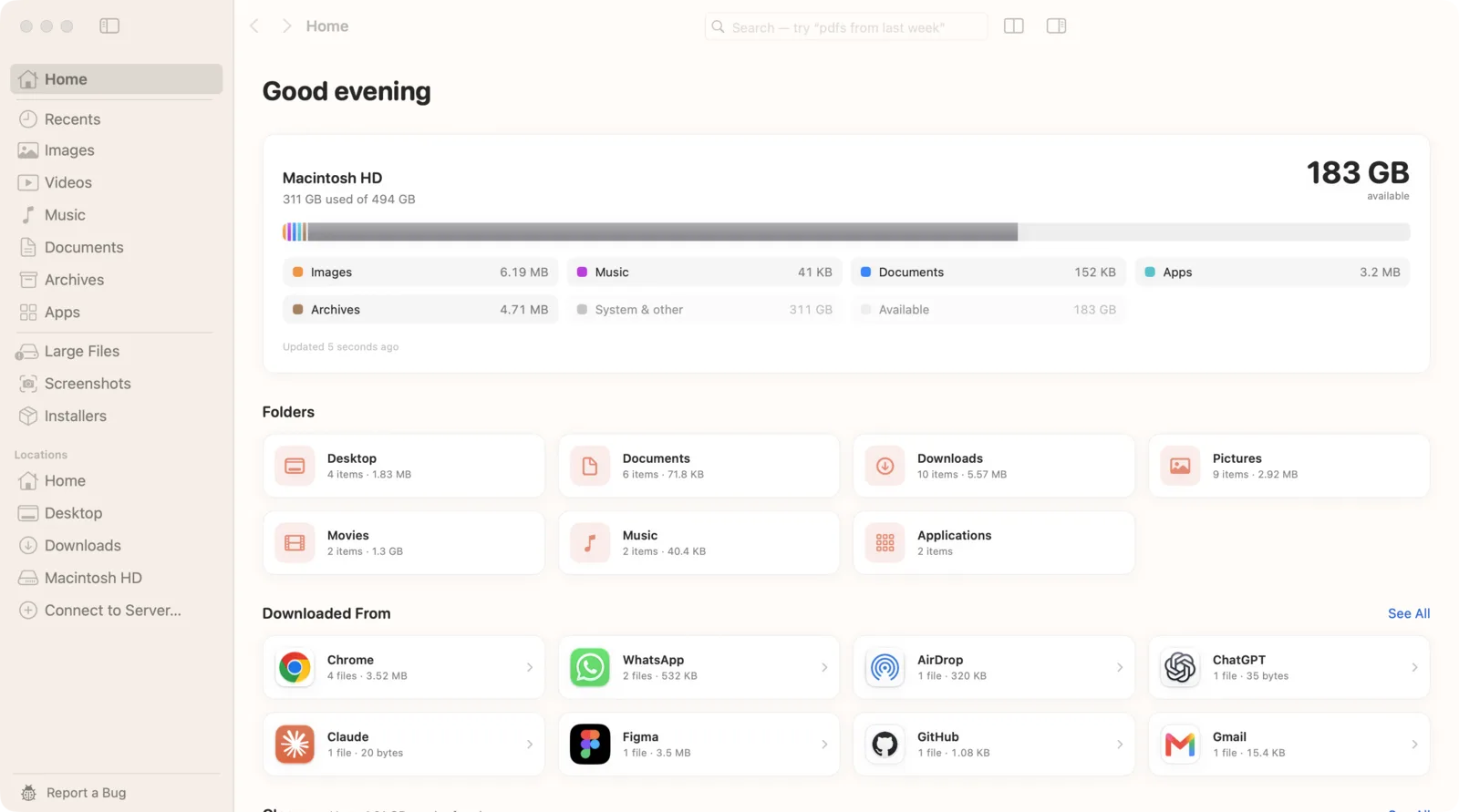
Seek is a native Mac file manager that runs beside Finder and is built around finding and tidying the files on your Mac. It browses folders like Finder, in a grid or a list, with tabs and split view. What sets it apart is search:
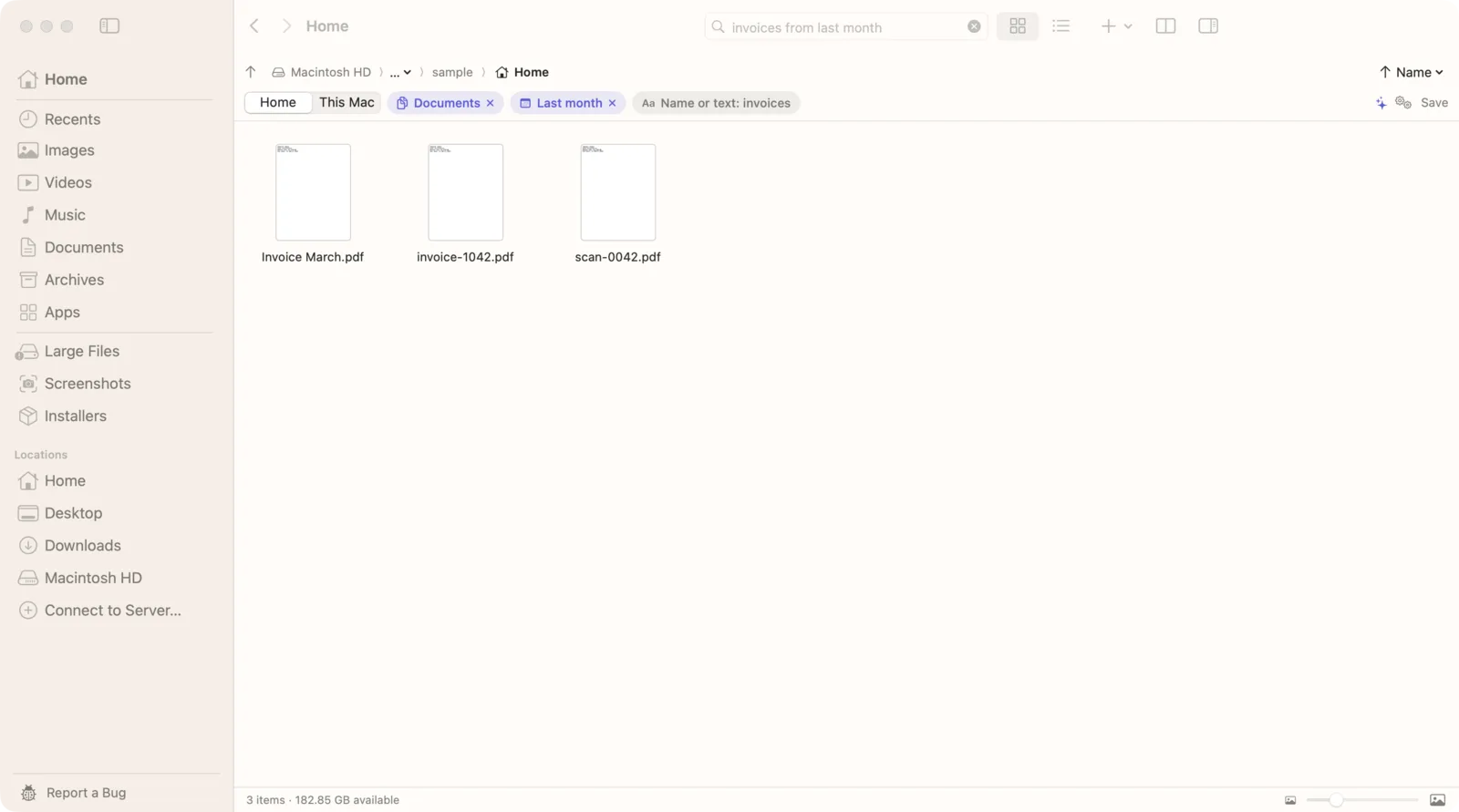
- Plain-English search. Type “pdfs in Downloads from this month” and Seek turns it into filters you can see and remove: PDFs, this month, in Downloads. How natural language search works.
- Words inside files. Seek reads the text in PDFs, Word, Excel, PowerPoint, text and code files, and keeps its own index alongside Spotlight. How to search file contents on Mac.
- Scans and screenshots. With text recognition on your Mac, it reads the words in scanned PDFs, photos of paper and screenshots. Search text in screenshots.
- Photos by what's in them. Describe a photo, like “dog on the beach”, and Seek finds it even if it's called IMG_4460. An image model runs on your Mac to do this. Find photos by description.
- Scope you can see. Under the search field you pick the current folder, Home or This Mac, and a place in your search (“in Downloads”) always wins.
It also covers the tidying side: duplicates found by content, Cleanup suggestions, downloads grouped by the app or site they came from, pausable copies and an undo history. Everything runs on your Mac; your files are never uploaded.
Seek vs Finder for finding files
| Feature | Finder | Seek |
|---|---|---|
| Search in plain English | — | ✓ |
| See and remove each filter | Criteria rows | ✓ |
| Words inside documents | ✓ | ✓ |
| Find photos by what's in them | — | ✓ |
| Search downloads by source | — | ✓ |
| Search from any app | Spotlight | ✓ |
| Duplicate finder | — | ✓ |
| Cleanup suggestions | — | ✓ |
| Split view with two panes | — | ✓ |
| Pausable transfers | — | ✓ |
| Folder sizes in every view | Slow, opt-in | ✓ |
| Quick Look and tabs | ✓ | ✓ |
Search apps vs file managers
There's a third group worth knowing: apps that only search. Find Any File, EasyFind and HoudahSpot are search tools, not file browsers, and launchers like Alfred and Raycast can find files too. If you're coming from Windows and miss Everything, they're often the first place people look. We compare them in Everything for Mac: choosing a file search alternative.
The difference with a file manager like Seek is that search and browsing live in the same window. You search, then rename, move, preview or trash the results right there, with undo.
You don't have to give up Finder
Seek shows the same files as Finder, and “Show in Finder” is always one click away. A quick search panel (⌃⇧Space) opens over any app: ↩ opens the file, ⌘↩ shows it in Seek, and ⌥↩ shows it in Finder. So you can keep Finder as your main browser and use Seek only when you need to find something.
When another app is the better pick
- Remote servers. Seek doesn't connect to FTP, SFTP or cloud storage. ForkLift or Commander One do.
- Column view. Seek shows folders as a grid or a list. If you live in column view, keep Finder for that.
- Heavy customization. If you want to rearrange every panel, Path Finder gives you more knobs.
Questions
What is the best Finder alternative for finding files?
It depends on what you can't find. If you need to search by the words inside documents, by what a photo shows, or by plain-English filters like “pdfs in Downloads from this month”, Seek is built for that. If you mainly move files to servers, a dual-pane manager like ForkLift or Commander One is a better fit.
Does Seek replace Finder?
No. Seek runs alongside Finder and shows the same files. Show in Finder is always one click away, so you can use both.
Can Seek connect to FTP or SFTP servers?
No. Seek is built for finding and tidying the files on your Mac. If you need remote servers, a dual-pane manager like ForkLift or Commander One is a better fit.
Which Macs does Seek run on?
macOS 14 Sonoma or later, on Apple silicon and Intel Macs.

Try a Finder that finds.
One-time purchase, no subscription. Your files never leave your Mac.