How to find and remove duplicate files on your Mac
Download the same PDF twice, AirDrop a photo you already had, copy a folder “just in case”, and copies pile up. macOS has no built-in duplicate finder, so here are two ways to deal with them: by hand in Finder, and the quick way with Seek.
Does Finder find duplicates?
No. Finder can't compare what's inside files, so it can't tell you that beach-sunset-final.jpg and IMG_4412.jpg are the same photo. What it can do is help you spot obvious copies by eye.
The manual way, in Finder
- Open the folder you want to check, often Downloads, and switch to list view (⌘2).
- Click the Size column to sort by size. Copies of the same file sit next to each other with the same size.
- Look for names ending in “(1)”, “copy” or “2”. Select one and press Space to compare them in Quick Look.
- Move the extras to the Trash with ⌘⌫.
That works for one folder with a few obvious copies. It misses renamed copies, copies spread across folders, and anything you don't recognize from a thumbnail.
The quick way, with Seek
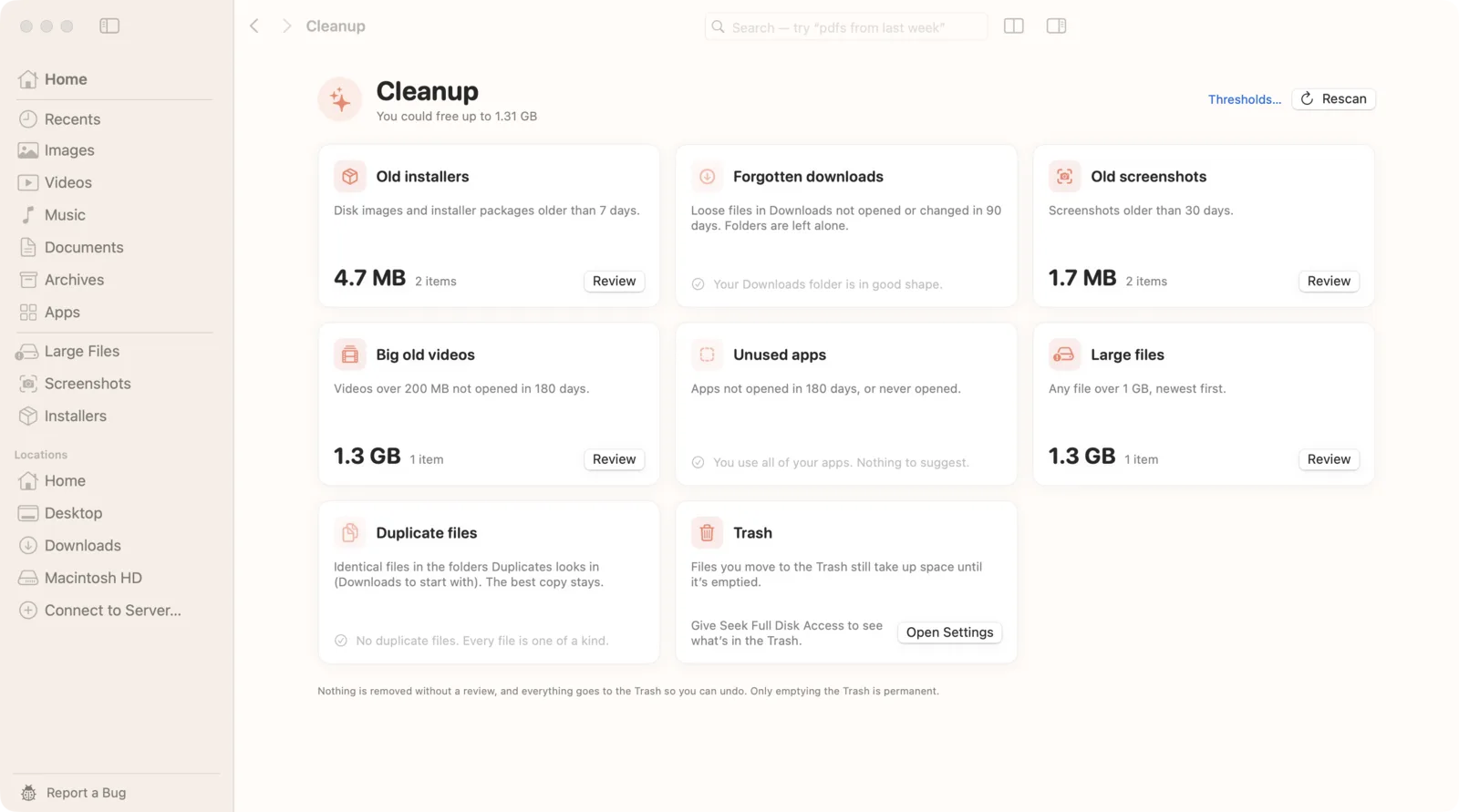
Seek compares the contents of files, so it finds every exact copy, whatever it's called and wherever it is in the folders you choose.
- Open Duplicates with ⇧⌘D.
- Choose folders. Seek starts with Downloads, where most copies end up. Add any other folders you want checked.
- Check each group. Seek groups the copies and marks the one it will keep. Click another copy to keep that one instead.
- Trash the extras. They go to the Trash, not straight to deletion, so you can put any of them back. The move can also be undone in Seek.
How Seek decides two files are the same
Seek first groups files of the same size, then compares their contents with a SHA-256 checksum. Two files only count as duplicates when every byte matches, so different edits of a document or different exports of a photo are never mixed up.
Similar photos, if you want them
Burst shots and near-identical photos aren't exact copies. Turn on look-alike photos in Settings › Cleanup and Seek also groups photos that are at least 95% alike, so you can keep the best shot.
Before you delete duplicates
- Leave the Photos library alone. Photos manages its own files; clean up duplicates inside the Photos app instead.
- Don't touch app or system folders. Apps sometimes keep identical files on purpose.
- Empty the Trash last. Space only comes back once the Trash is emptied, so give it a day in case you need something back.
Questions
Does Finder have a duplicate file finder?
No. Finder can sort a folder by name or size, which helps you spot copies by eye, but it can't compare file contents or find renamed copies.
How does Seek know two files are the same?
It compares their contents with a SHA-256 checksum, so two files only count as duplicates when every byte matches. The names don't matter.
Can it find similar photos, not just exact copies?
Yes, if you turn on look-alike photos in Settings. It groups photos that are at least 95% alike, such as two shots taken a second apart.

One copy is plenty.
Find every copy, even renamed ones. One-time purchase, no subscription.